Ask your ERP a question. Leo answers from your own books
Leo is the AI assistant inside Plentier ERP. Ask about stock, sales, payments or reports in plain English and get the figures in seconds. Send it a photo of a delivery note and it prepares the purchase receipt. Tell it a customer paid by M-Pesa and it records the payment. You approve every change.
What Leo does for your business, in real screenshots
Every screenshot below comes from Plentier ERP with demo data: a small shop selling groceries. Leo works the same way with your items, customers and suppliers.
Stock
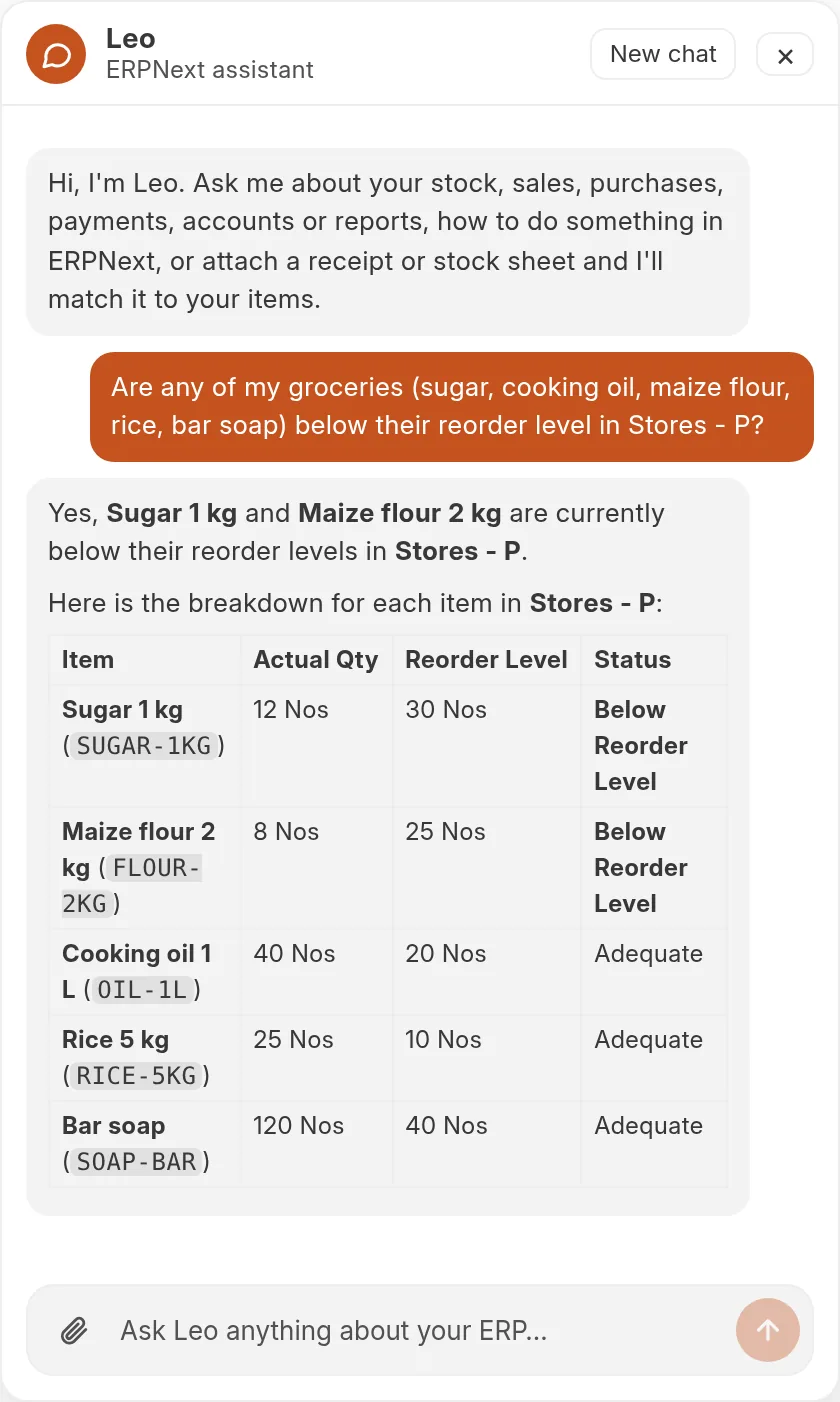
Know what's running low before the shelf is empty
Ask in your own words. Leo checks live stock in each store against the reorder levels set on your items and tells you what to restock.
Current, reserved and on-order quantities per store
Uses your reorder levels, or a limit you give it
Receipts
Snap the delivery note. Leo prepares the receipt
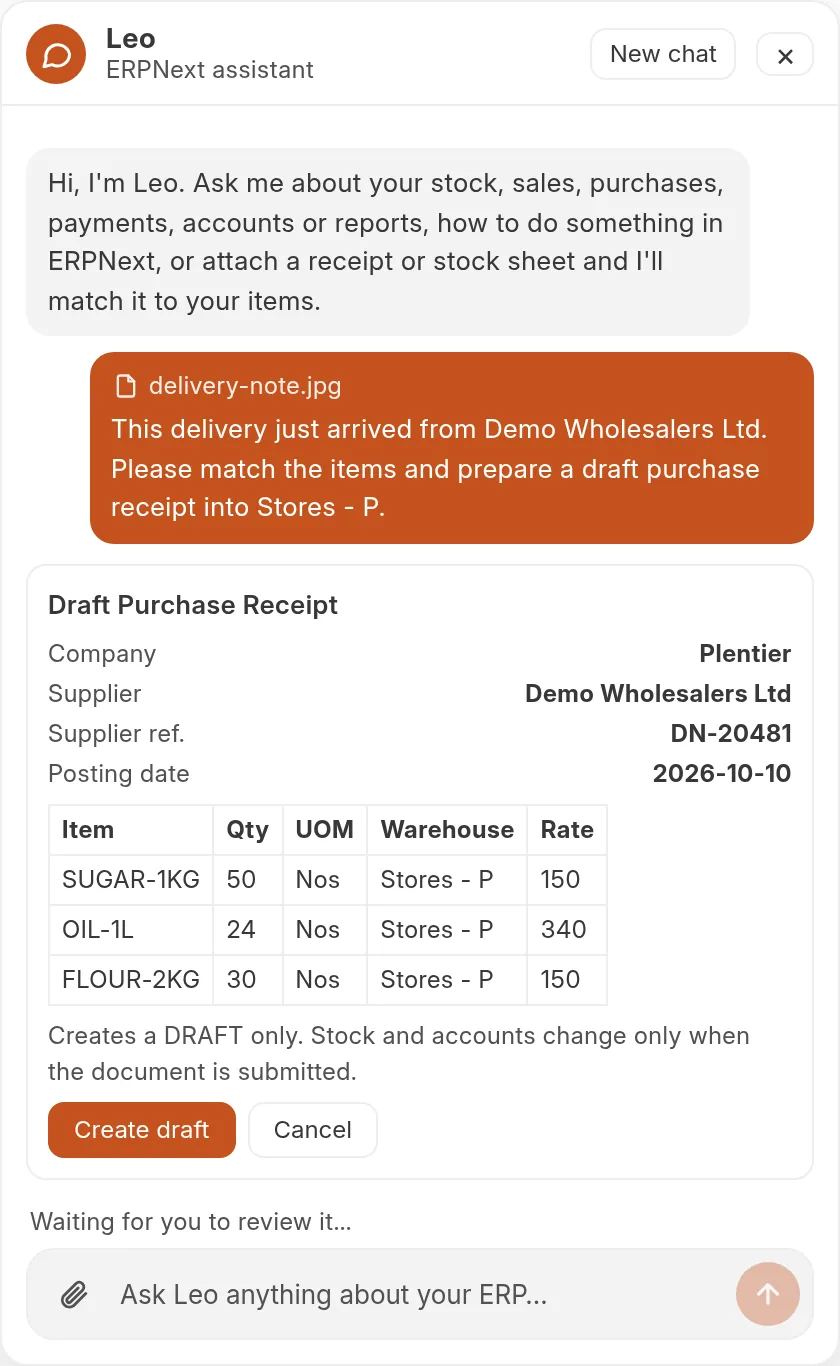
Attach a photo or PDF of a supplier's delivery note. Leo reads the lines, matches them to your items and shows a draft purchase receipt with quantities, prices and the store.
Photos, PDFs, CSV and Excel stock sheets
Asks you when an item could be more than one product
You stay in control
Drafts first. You decide when it's final
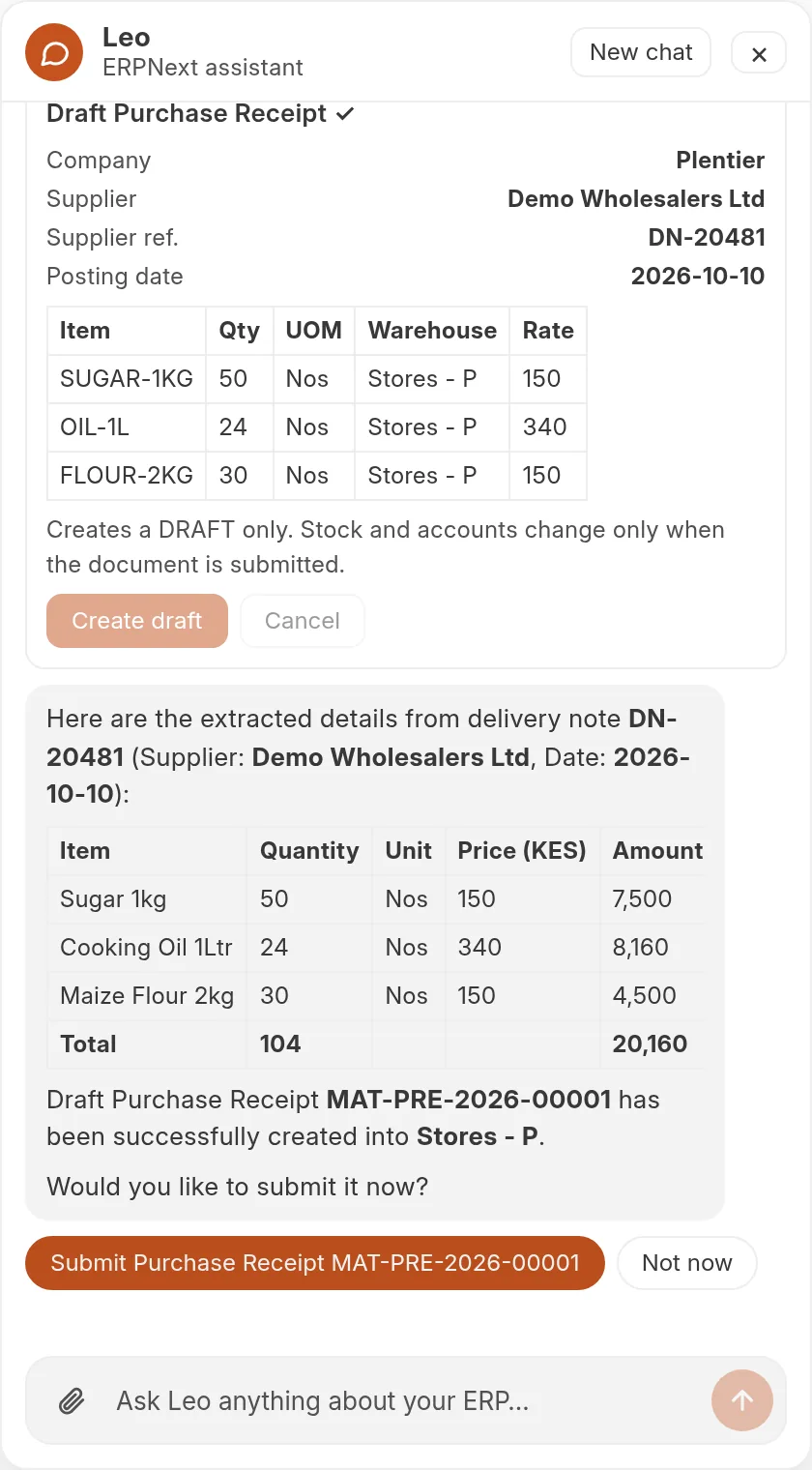
Nothing is saved until you click. Documents start as drafts, and Leo asks before submitting them, showing the current document so you can check it one last time.
Preview with the exact values before anything is saved
Submit is always your click, never Leo's
Payments
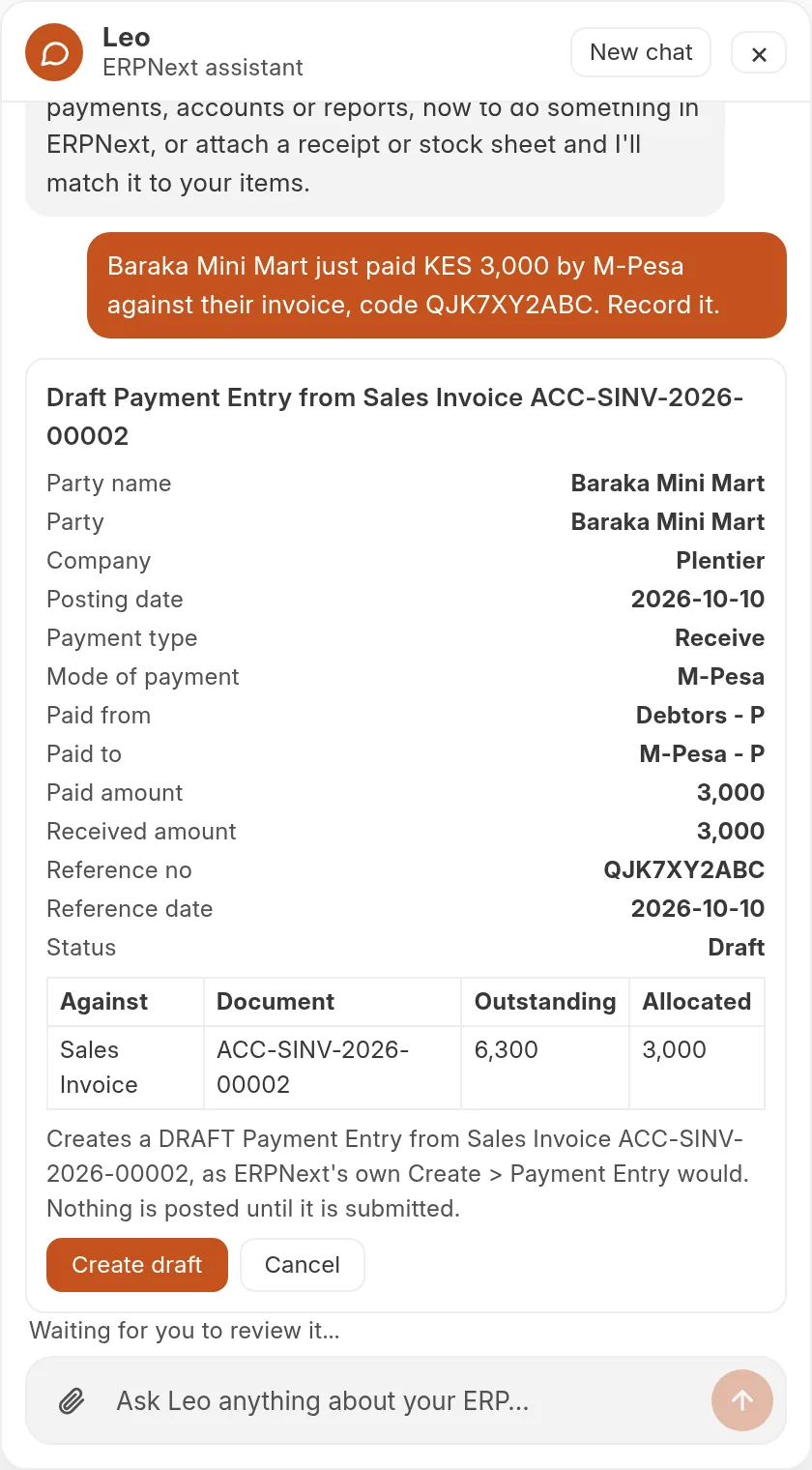
Record an M-Pesa payment in one sentence
Tell Leo who paid, how much and the M-Pesa code. It prepares the payment against the right invoice, posts it to the M-Pesa account and shows what is still outstanding.
Full or part payments against invoices and orders
Posted to the account set up for that payment mode
Sales and reports
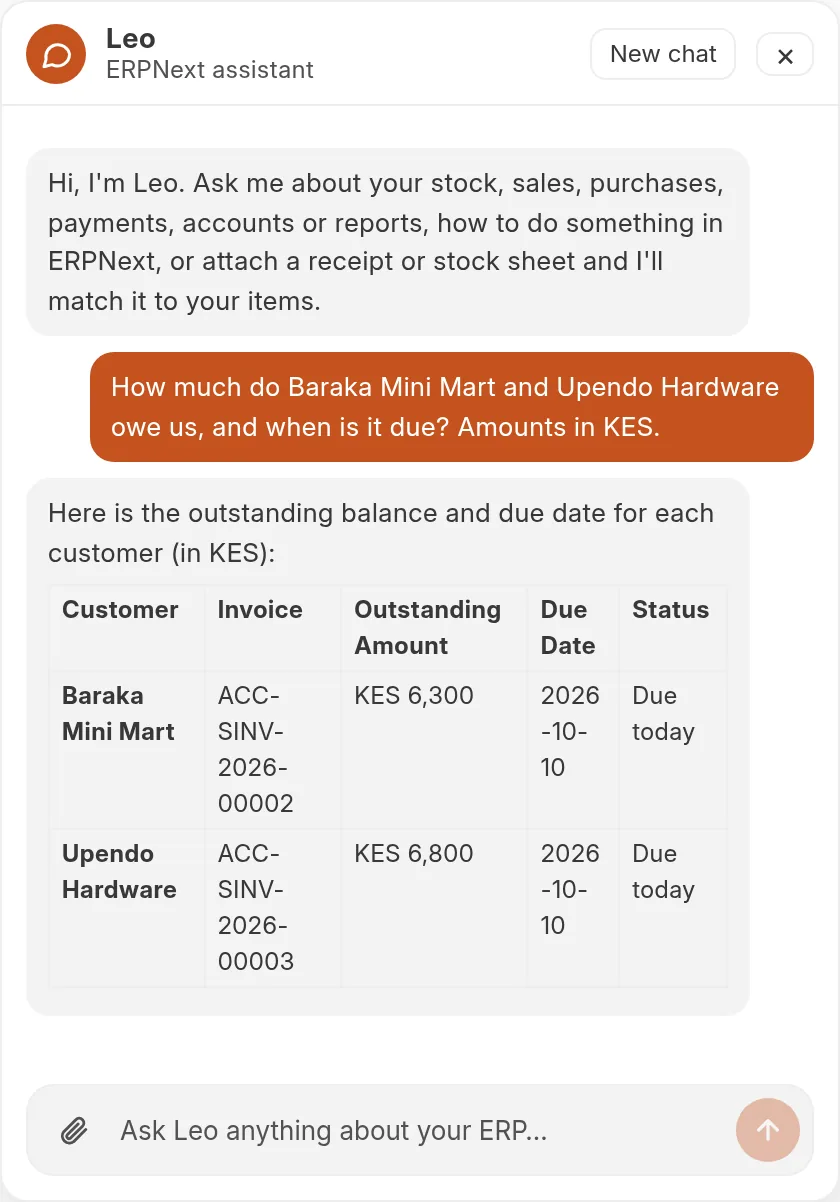
See who owes you, and when it's due
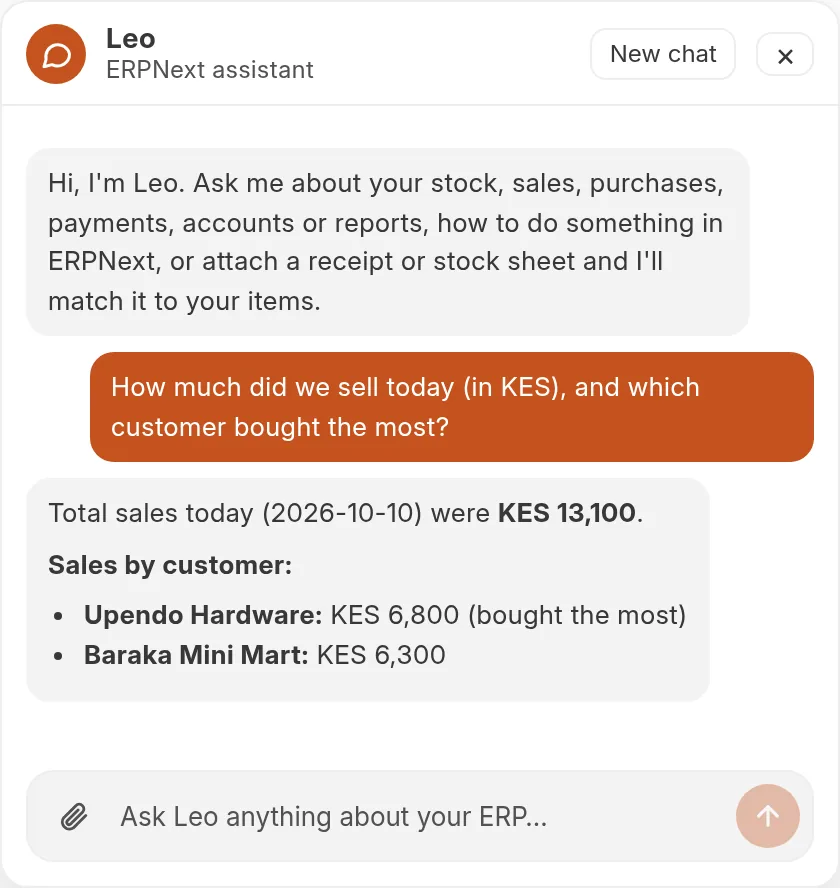
Ask how much you sold this week, who owes you money or which items made the most profit. Leo adds up your submitted documents or runs the standard ERPNext report and gives you the figures, invoice by invoice.
Sales, purchases, receivables and payables
General ledger, trial balance, profit and loss and more
ERPNext help
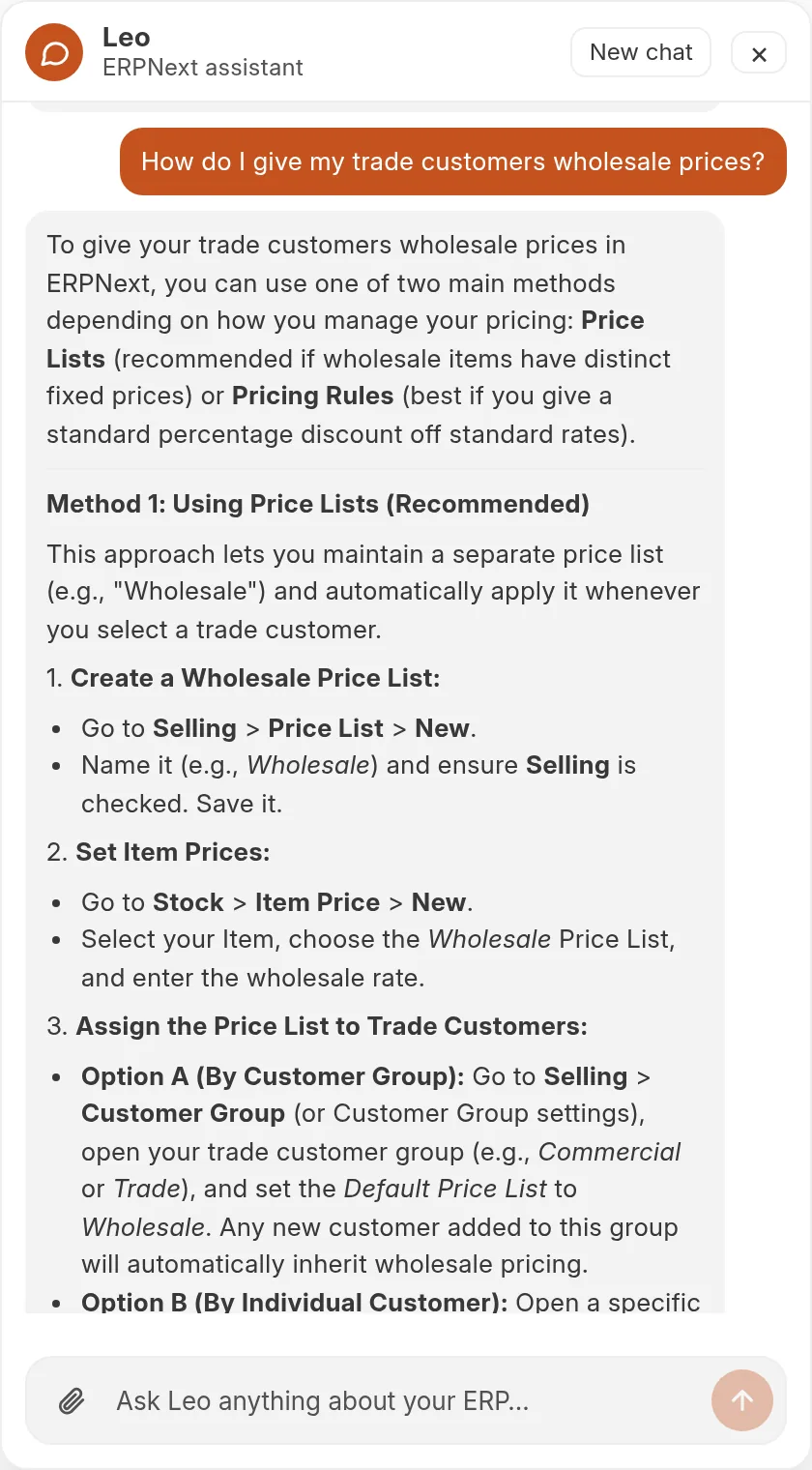
Your ERPNext expert, on every screen
Not sure how to set up wholesale prices, a sales return or a new tax? Leo explains the steps in ERPNext, menu by menu, and checks your setup when that matters.
Step-by-step answers for ERPNext 15
Saves waiting for support with everyday questions
Safe by design
An assistant you can let near your books
Leo is built on the same rules as the rest of your ERP. It cannot do anything the person using it couldn't do themselves, and it never finalises a document on its own.
Your permissions, not Leo's. Every lookup runs as the person asking, so ERPNext's roles, companies and store restrictions apply. A cashier can't see your profit and loss through Leo.
Preview, then approve. Before anything is created you see the exact customer, items, quantities, prices and accounts. One click creates it; Cancel leaves everything as it was.
Drafts until you submit. Documents start as drafts. When you submit, Leo re-reads the document and stops if anyone changed it since you checked.
ERPNext still checks everything. Stock levels, credit limits, required fields and approvals work exactly as they do when you enter a document by hand.
No deleting, no cancelling. Leo can read and create, but it cannot edit, cancel or delete documents. For those, it tells you where to click.
Try asking
Questions your team can ask Leo today
Leo understands everyday language, so there are no commands to learn. A few examples from stock, sales, purchasing and accounts:
Which items are below their reorder level?
How much did we sell this week?
Who owes us money, and for how long?
Create an invoice for Baraka Mini Mart: 10 bags of maize flour
Record KES 3,000 from Upendo Hardware by M-Pesa, code QJK7XY2ABC
Turn sales order SAL-ORD-0012 into an invoice
What did we buy from Demo Wholesalers last month?
Show the profit and loss for September
Move 20 crates of soda from the main store to the shop
How do I record a sales return?
How to start
Leo is ready the day your ERP is
Get your ERP
Choose a plan and pay online. Your private Plentier ERP is set up in minutes, with Leo switched on.
Add your items
Import items, prices and opening stock from a spreadsheet, or ask Leo to add them one by one.
Click the Leo button
It sits in the bottom-right corner of every screen. Type a question, or attach a receipt.
Approve and carry on
Check Leo's preview, click Create, and decide when to submit. Your team works faster from day one.
Leo is the AI assistant built into Plentier ERP. Open it from the Leo button in the corner of any ERPNext screen and ask in plain English about your stock, sales, purchases, payments, accounts or reports. Leo looks the answer up in your own ERP and replies in seconds, and it can prepare documents such as invoices, purchase receipts and payments for you to approve.
Can Leo show staff data they are not allowed to see?
No. Leo works with the permissions of the person using it. Every lookup runs as that user, so ERPNext's own roles and restrictions decide what comes back. A cashier who cannot open sales reports in ERPNext cannot see them through Leo either.
Will Leo change my records without asking?
No. Leo shows you a preview with the exact values first, and nothing is saved until you click Create. Invoices, orders, receipts and payments are saved as drafts. Submitting a draft, which posts it to your stock and accounts, is a separate step: Leo asks, shows the current document, and you click Submit yourself.
What can Leo create?
Customers, suppliers and items; quotations, sales orders, sales invoices and delivery notes; purchase orders, purchase receipts, purchase invoices and material requests; stock transfers, receipts and issues; and payments against invoices, including M-Pesa with its transaction code. It can also turn one document into the next the way ERPNext's Create menu does, for example a sales order into an invoice. Leo does not edit, cancel or delete documents.
Can I upload a receipt or delivery note?
Yes. Attach a photo or PDF of a supplier receipt or delivery note, or a CSV or Excel stock sheet (up to 5 MB). Leo lists what it read, matches each line to your items, asks when an item is unclear, and prepares a draft purchase receipt or stock entry for you to check.
Can I trust Leo's numbers?
Leo only quotes figures it has just read from your ERP and tells you which records they came from; it does not estimate stock or sales. Like any assistant it can misread a question, so check a preview before you approve it. Every number Leo gives can be confirmed in the matching ERPNext report.
Does Leo cost extra?
Leo comes with Plentier ERP and is switched on for new ERPs automatically, with a monthly usage allowance per ERP that covers normal daily use. If your team needs more, talk to us.
Which AI does Leo use, and where does my data go?
Leo runs on a leading AI model (Anthropic's Claude or Google's Gemini) through Plentier's own business account. For each question, only the question and the records needed to answer it are sent to the model; your passwords and login sessions never are. Your ERP data stays in your own ERP database.
Ready for an ERP you can simply ask?
Book a free, no-obligation consultation. We’ll review your goals and recommend a practical path forward, usually within one call.