
Guides
Step-by-step help for running your business on Plentier ERP, written by the team that hosts and supports it. Every screenshot comes from a real Plentier ERP system.
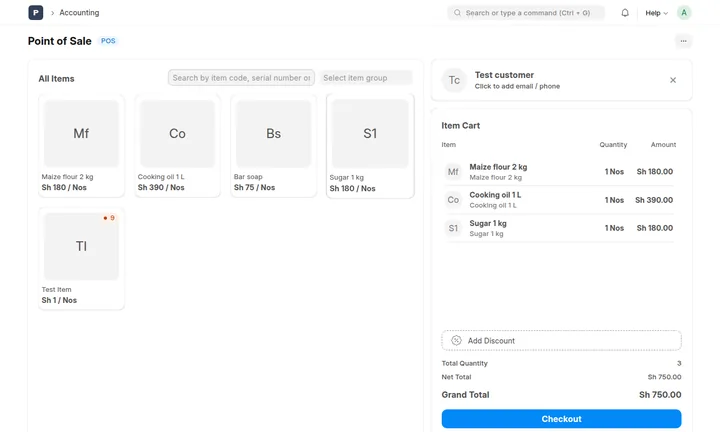
How to set up the POS
Add items and prices, create a POS profile, open a shift, sell, print receipts and close the day.
Read the guide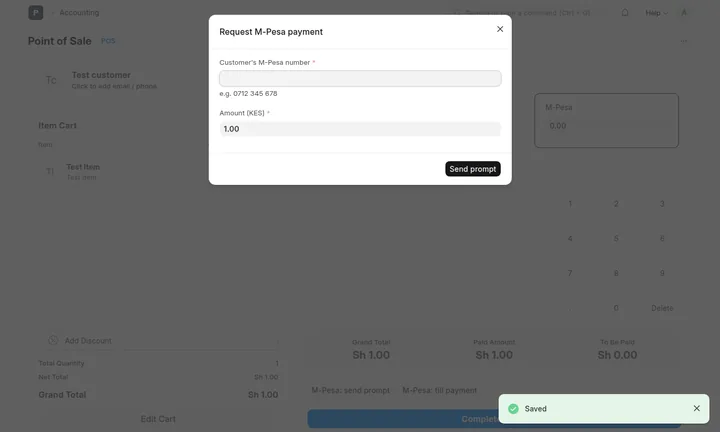
How to set up M-Pesa
Connect your paybill or till, send M-Pesa prompts from the POS and invoices, and apply till payments.
Read the guideWhere to start
If you're opening a shop on Plentier ERP, follow the guides in order. Start with the POS guide: add your items and prices, create a POS profile for each till, and practise a sale and a shift close before your first customer. Then connect your paybill or till with the M-Pesa guide, so cashiers can send payment prompts and apply till payments without typing receipt numbers.
Each guide is written from a real Plentier ERP system and shows the exact screens your team will use. Steps work the same on every plan; the only difference between plans is how many users (cashiers) and stock locations you can add, which you can compare on the pricing page.
Prefer us to set it up?
Our team can import your products from a spreadsheet, configure your tills and receipt format, complete Safaricom's M-Pesa go-live for your paybill or till, and train your cashiers, as part of our ERPNext implementation service.
Need something that isn't covered here? Ask our team; support is included in every plan.
Ready to run your business on Plentier ERP?
Book a free, no-obligation consultation. We’ll review your goals and recommend a practical path forward, usually within one call.