
ERPNext practical lab: an electronics shop with 50 products
Run a small electronics shop from start to finish in ERPNext: load 50 products with barcodes and prices, track phones and laptops by serial number, buy stock from a supplier, sell at the till by cash, card and M-Pesa, take a return, and use the reports to find what's running low and what barely makes money.
By the Plentier Systems ERP team · Updated · About 2 hours if you follow along in your own ERP.
Every number and screenshot on this page comes from a real ERPNext 15 system we built for this lab, set up the way Plentier sets up a customer's ERP. Follow along in your own ERP, or read it to see how buying, selling, returns, stock and accounts fit together.
What you'll do
- Create 50 products with barcodes, buying prices and selling prices.
- Turn on serial numbers for phones, tablets, laptops, TVs and routers.
- Buy from a supplier: purchase order, purchase receipt, purchase invoice.
- Sell through the POS by cash, card and M-Pesa, and close the shift.
- Process a return and follow it through stock and the general ledger.
- Read the reports: stock balance, stock value, sales, low stock and margins.
Step 1: Create the products
The shop stocks 50 products in 11 item groups: Phones, Tablets, Laptops, TVs, Audio, Phone Accessories, Computer Accessories, Storage, Networking, Power and Home. Each one needs:
- Item code, name and item group, for example PH-A15, “Smartphone 6.5" 4GB/128GB”, Phones. Keep codes short: cashiers search by them.
- A barcode on the Inventory tab, type EAN. Products without a manufacturer barcode get an in-store EAN-13 starting with 200, a range reserved for shop use so it never clashes with a real product.
- A buying price (price list Standard Buying) and a selling price (Standard Selling), saved as Item Prices. Purchase orders pick up the first, the POS the second.
- A reorder level for the store under Auto Re-order, the quantity at which you want to restock. Step 7 uses it to find low stock.
Typing 50 items one by one is slow. Download the product list and load it with Data Import: first Item (code, name, group, barcode), then Item Price (one row per item and price list).
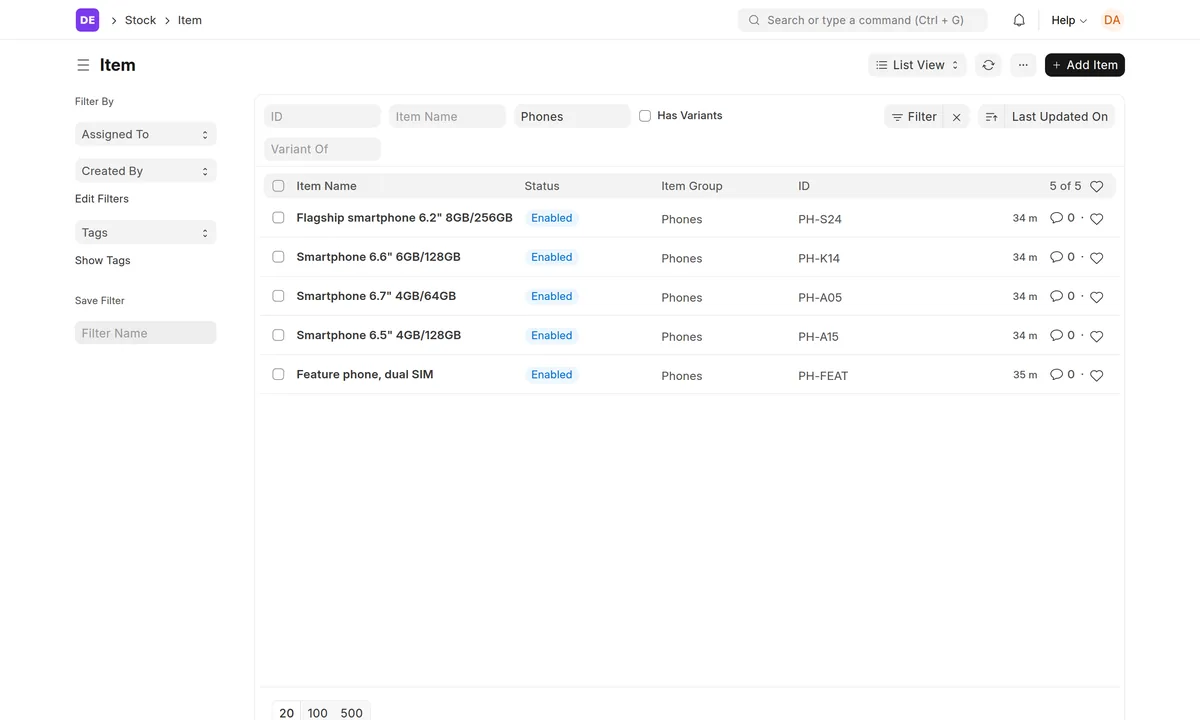
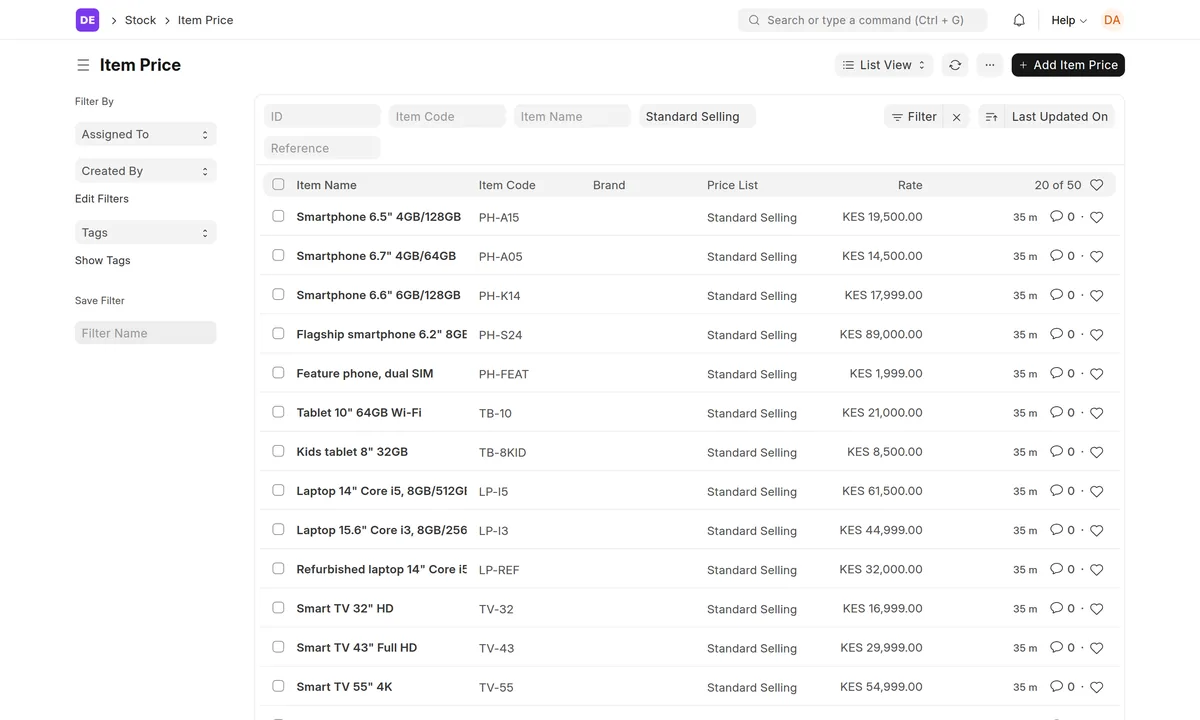
See all 50 products with barcodes and margins
| Code | Product | Barcode | Buy (KES) | Sell (KES) | Margin | Serial |
|---|---|---|---|---|---|---|
| PH-A15 | Smartphone 6.5" 4GB/128GB | 2000000100012 | 17,500 | 19,500 | 10.3% | Yes |
| PH-A05 | Smartphone 6.7" 4GB/64GB | 2000000100029 | 12,800 | 14,500 | 11.7% | Yes |
| PH-K14 | Smartphone 6.6" 6GB/128GB | 2000000100036 | 15,900 | 17,999 | 11.7% | Yes |
| PH-S24 | Flagship smartphone 6.2" 8GB/256GB | 2000000100043 | 78,000 | 89,000 | 12.4% | Yes |
| PH-FEAT | Feature phone, dual SIM | 2000000100050 | 1,350 | 1,999 | 32.5% | |
| TB-10 | Tablet 10" 64GB Wi-Fi | 2000000100067 | 16,500 | 21,000 | 21.4% | Yes |
| TB-8KID | Kids tablet 8" 32GB | 2000000100074 | 6,200 | 8,500 | 27.1% | Yes |
| LP-I5 | Laptop 14" Core i5, 8GB/512GB | 2000000100081 | 52,000 | 61,500 | 15.4% | Yes |
| LP-I3 | Laptop 15.6" Core i3, 8GB/256GB | 2000000100098 | 38,500 | 44,999 | 14.4% | Yes |
| LP-REF | Refurbished laptop 14" Core i5 | 2000000100104 | 24,000 | 32,000 | 25.0% | Yes |
| TV-32 | Smart TV 32" HD | 2000000100111 | 13,800 | 16,999 | 18.8% | Yes |
| TV-43 | Smart TV 43" Full HD | 2000000100128 | 24,500 | 29,999 | 18.3% | Yes |
| TV-55 | Smart TV 55" 4K | 2000000100135 | 46,000 | 54,999 | 16.4% | Yes |
| AU-EB1 | Wireless earbuds | 2000000100142 | 1,100 | 2,499 | 56.0% | |
| AU-HP1 | Over-ear Bluetooth headphones | 2000000100159 | 2,300 | 4,500 | 48.9% | |
| AU-SPK | Portable Bluetooth speaker | 2000000100166 | 1,900 | 3,499 | 45.7% | |
| AU-SB | Soundbar 2.1 with subwoofer | 2000000100173 | 9,800 | 12,999 | 24.6% | |
| AU-WE | Wired earphones 3.5 mm | 2000000100180 | 120 | 350 | 65.7% | |
| AC-CH25 | USB-C fast charger 25 W | 2000000100197 | 450 | 1,200 | 62.5% | |
| AC-CH18 | USB charger 18 W with micro-USB cable | 2000000100203 | 280 | 650 | 56.9% | |
| AC-CBC | USB-C cable 1 m | 2000000100210 | 90 | 300 | 70.0% | |
| AC-CBL | Lightning cable 1 m | 2000000100227 | 140 | 450 | 68.9% | |
| AC-CBM | Micro-USB cable 1 m | 2000000100234 | 60 | 200 | 70.0% | |
| AC-PB10 | Power bank 10,000 mAh | 2000000100241 | 950 | 1,999 | 52.5% | |
| AC-PB20 | Power bank 20,000 mAh | 2000000100258 | 1,650 | 2,999 | 45.0% | |
| AC-SP | Tempered glass screen protector | 2000000100265 | 35 | 300 | 88.3% | |
| AC-CASE | Silicone phone case | 2000000100272 | 80 | 450 | 82.2% | |
| AC-CAR | Car charger, dual USB | 2000000100289 | 220 | 600 | 63.3% | |
| AC-HOLD | Car phone holder | 2000000100296 | 260 | 700 | 62.9% | |
| CP-MS | Wireless mouse | 2000000100302 | 380 | 899 | 57.7% | |
| CP-KB | USB keyboard | 2000000100319 | 450 | 999 | 55.0% | |
| CP-COMBO | Wireless keyboard and mouse combo | 2000000100326 | 1,350 | 2,499 | 46.0% | |
| CP-BAG | Laptop backpack 15.6" | 2000000100333 | 1,100 | 2,200 | 50.0% | |
| CP-CHG | Universal laptop charger 90 W | 2000000100340 | 1,250 | 2,499 | 50.0% | |
| CP-HUB | USB hub, 4-port | 2000000100357 | 320 | 799 | 59.9% | |
| ST-FD32 | Flash drive 32 GB | 2000000100364 | 280 | 600 | 53.3% | |
| ST-FD64 | Flash drive 64 GB | 2000000100371 | 420 | 899 | 53.3% | |
| ST-SD64 | MicroSD card 64 GB | 2000000100388 | 450 | 999 | 55.0% | |
| ST-HDD1 | External hard drive 1 TB | 2000000100395 | 4,600 | 5,499 | 16.3% | |
| ST-SSD5 | SSD 512 GB SATA | 2000000100401 | 3,900 | 4,800 | 18.8% | |
| NW-RT | Wi-Fi router, dual band | 2000000100418 | 2,600 | 3,999 | 35.0% | Yes |
| NW-4G | 4G LTE MiFi hotspot | 2000000100425 | 3,100 | 4,299 | 27.9% | Yes |
| NW-EXT | Wi-Fi range extender | 2000000100432 | 1,500 | 2,499 | 40.0% | |
| NW-CAT6 | Ethernet cable Cat6, 5 m | 2000000100449 | 150 | 450 | 66.7% | |
| PW-AA | AA batteries, pack of 4 | 2000000100456 | 140 | 250 | 44.0% | |
| PW-EXT | Extension cable 4-way, surge protected | 2000000100463 | 650 | 1,199 | 45.8% | |
| PW-UPS | UPS 650 VA | 2000000100470 | 5,200 | 6,499 | 20.0% | |
| PW-SOL | Solar lantern with USB charging | 2000000100487 | 1,400 | 2,199 | 36.3% | |
| HM-REM | Universal TV remote | 2000000100494 | 220 | 600 | 63.3% | |
| HM-WM | TV wall mount 32-55" | 2000000100500 | 900 | 1,999 | 55.0% |
Opening stock
Before the lab starts the shop already has stock of its accessories and other items without serial numbers. We loaded it with one Stock Reconciliation (purpose Opening Stock) listing the quantity and cost of each item, with Temporary Opening as the difference account. Serial-tracked products start at zero and arrive with the supplier purchase in Step 3, so every serial number has a purchase behind it.
Step 2: Track serial numbers
For phones, tablets, laptops, TVs and routers you need to know exactly which unit you sold, for warranty claims and returns. Open the item, go to the Inventory tab and under Serial Nos and Batches tick Has Serial No. Fill in a Serial Number Series such as LPI3-.#####: ERPNext then numbers new units LPI3-00001, LPI3-00002 and so on when you receive them. If units come with the manufacturer's serial or IMEI, type or scan those instead. ERPNext's Serial No documentation covers the other options.
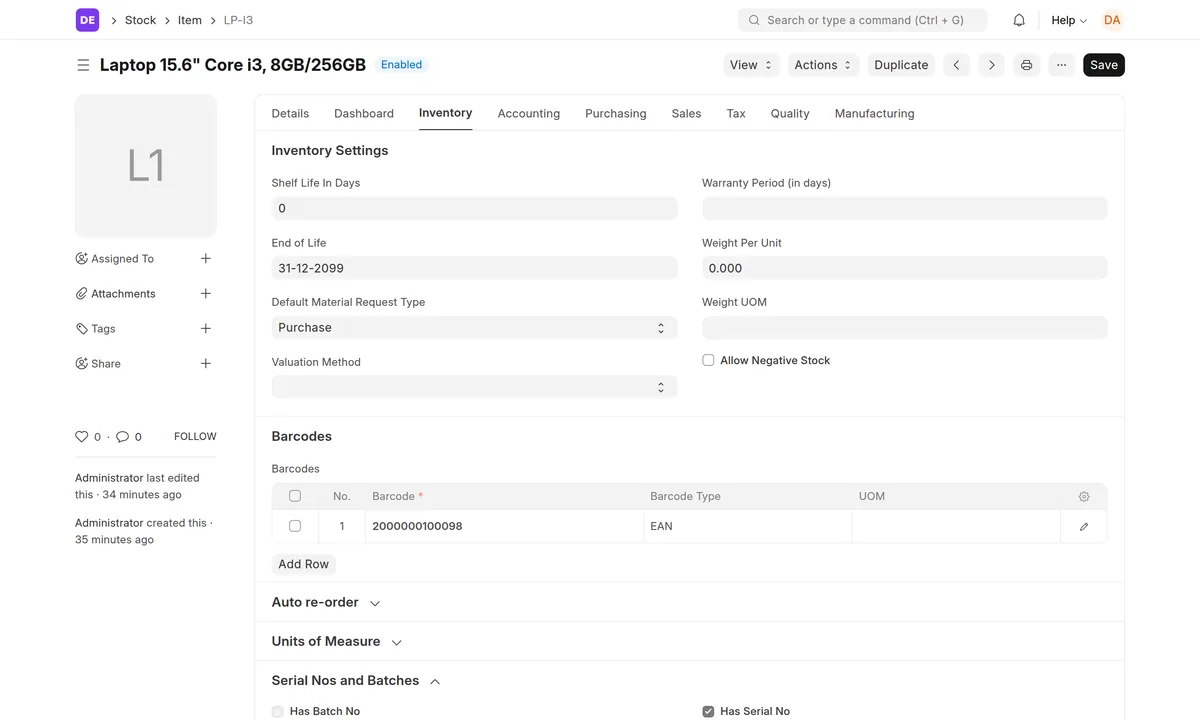
In this lab 14 of the 50 products are serial-tracked. Accessories such as cables and cases aren't: counting them is enough.
Step 3: Buy from a supplier and receive the stock
Create the supplier (Demo Distributors Ltd), then follow the standard buying flow:
- Purchase Order: what you ordered. Ours has 16 lines, mainly phones, laptops, TVs and routers, priced from Standard Buying.
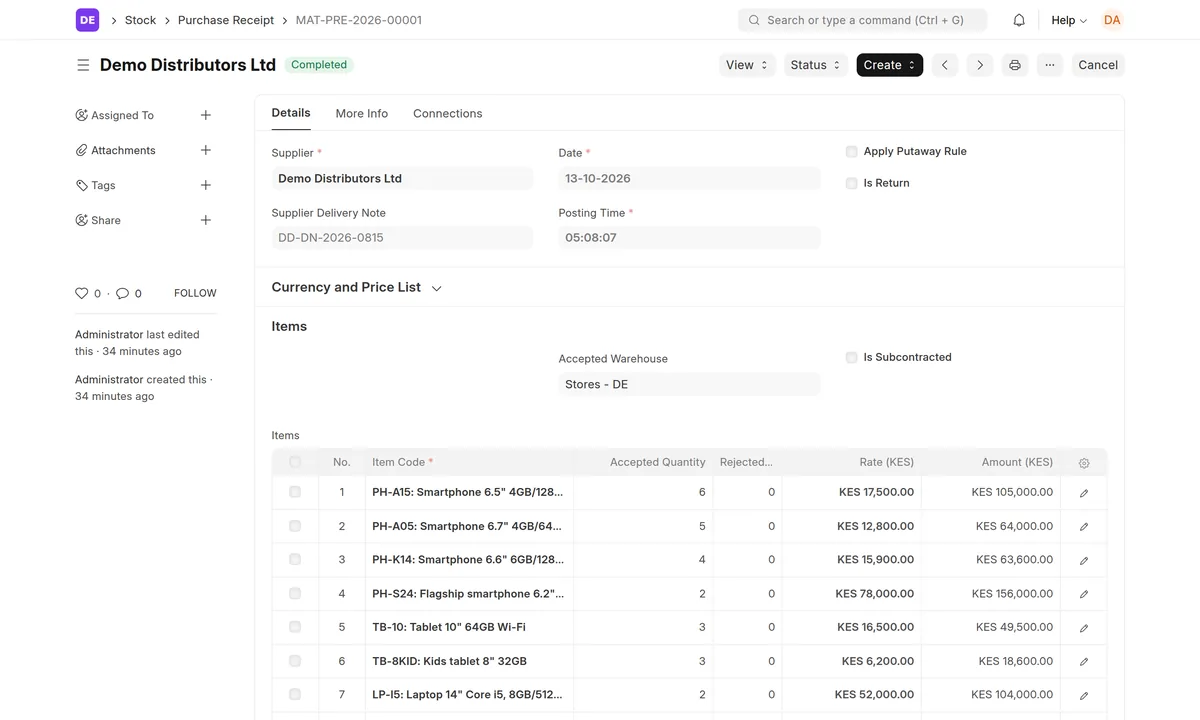
- Purchase Receipt (Create → Purchase Receipt on the order): what actually arrived. Submitting it adds the stock to the store at the buying price and creates the serial numbers, 43 in this lab.
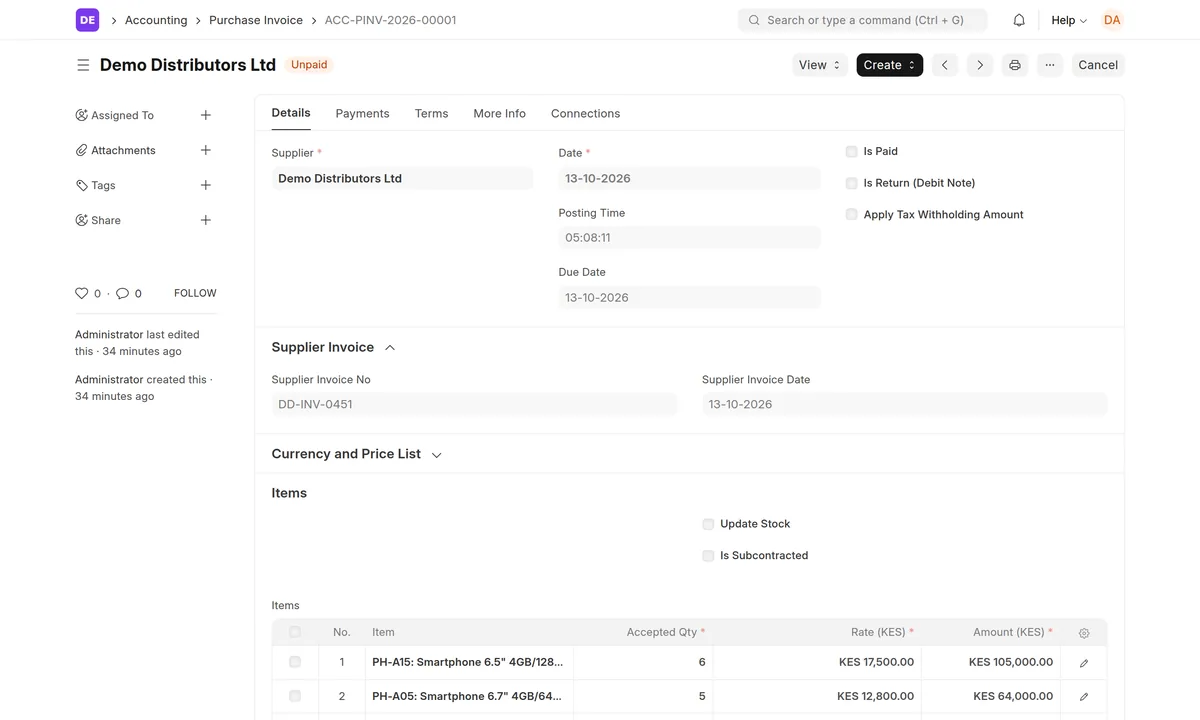
- Purchase Invoice (Create → Purchase Invoice on the receipt): the supplier's bill, with their invoice number. It records what you owe, KES 869,500 here, and leaves the stock alone because the receipt already added it.
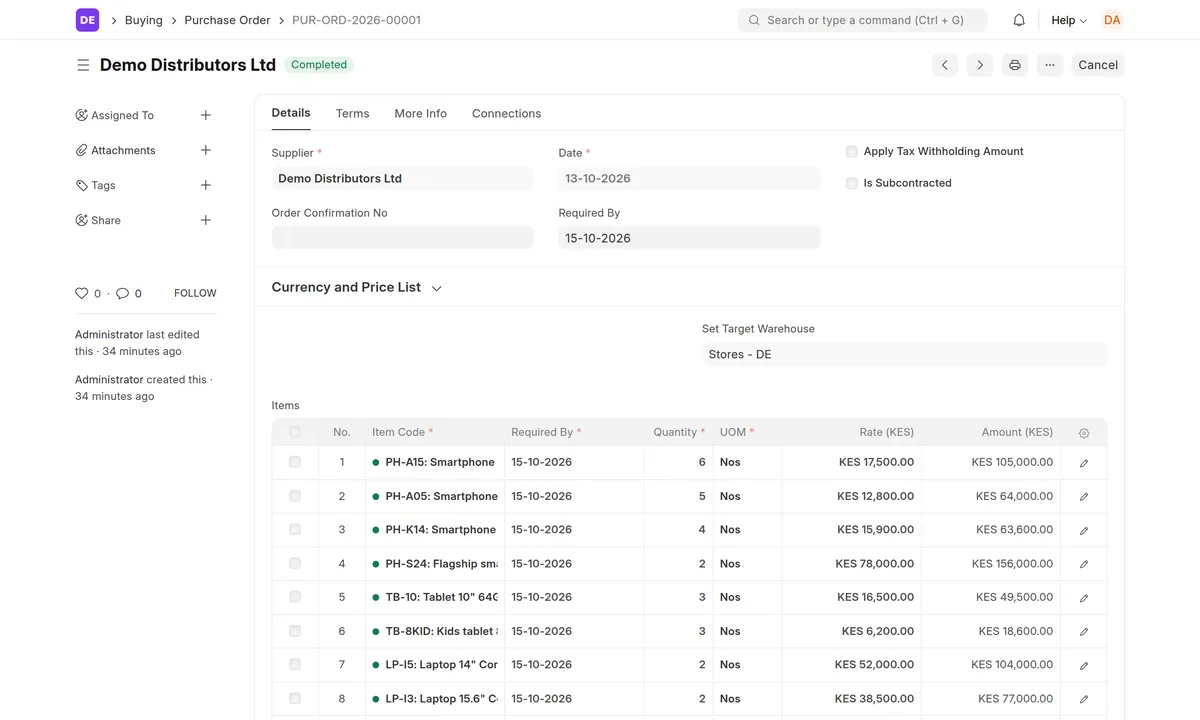
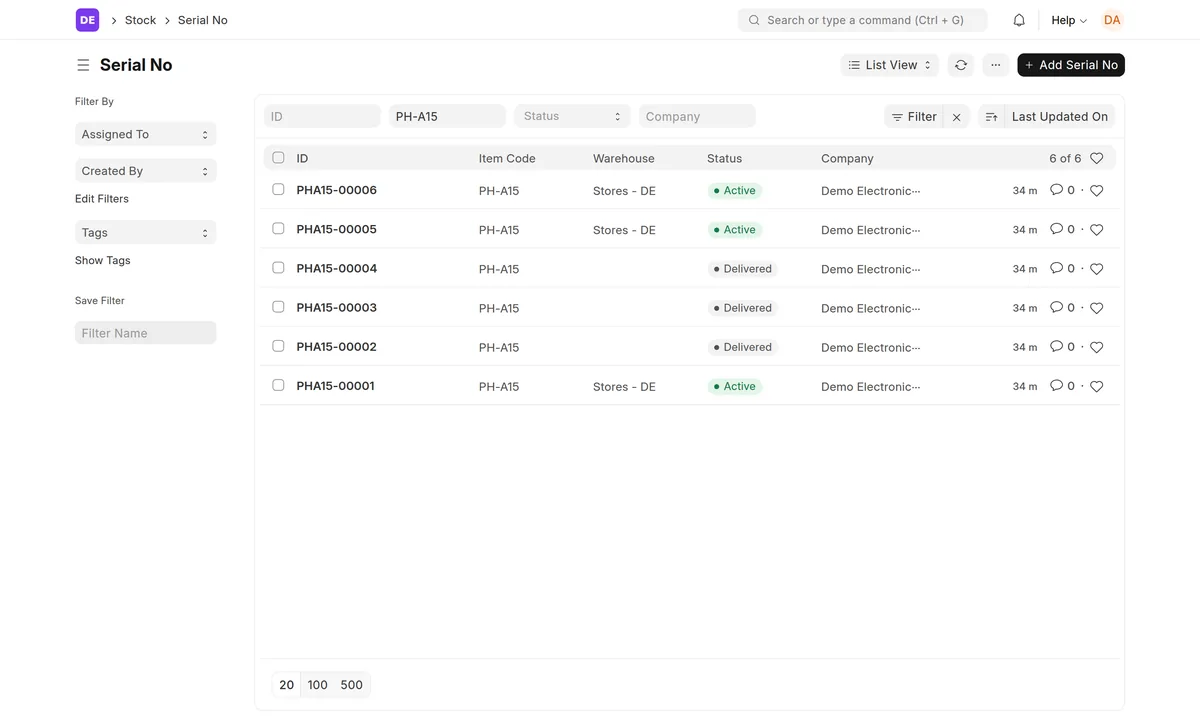
Open Serial No and filter by item to see every unit, the store it is in, and its status.
Step 4: Sell through the POS by cash, card and M-Pesa
The till is a POS profile called Main Counter. It sells from Stores at Standard Selling prices and takes three payment methods: Cash (the default), Credit Card, which posts to the shop's bank account, and M-Pesa. The POS setup guide covers the profile step by step. The cashier, Wanjiru, logs in with a personal user, opens a shift with a KES 5,000 float and sells:
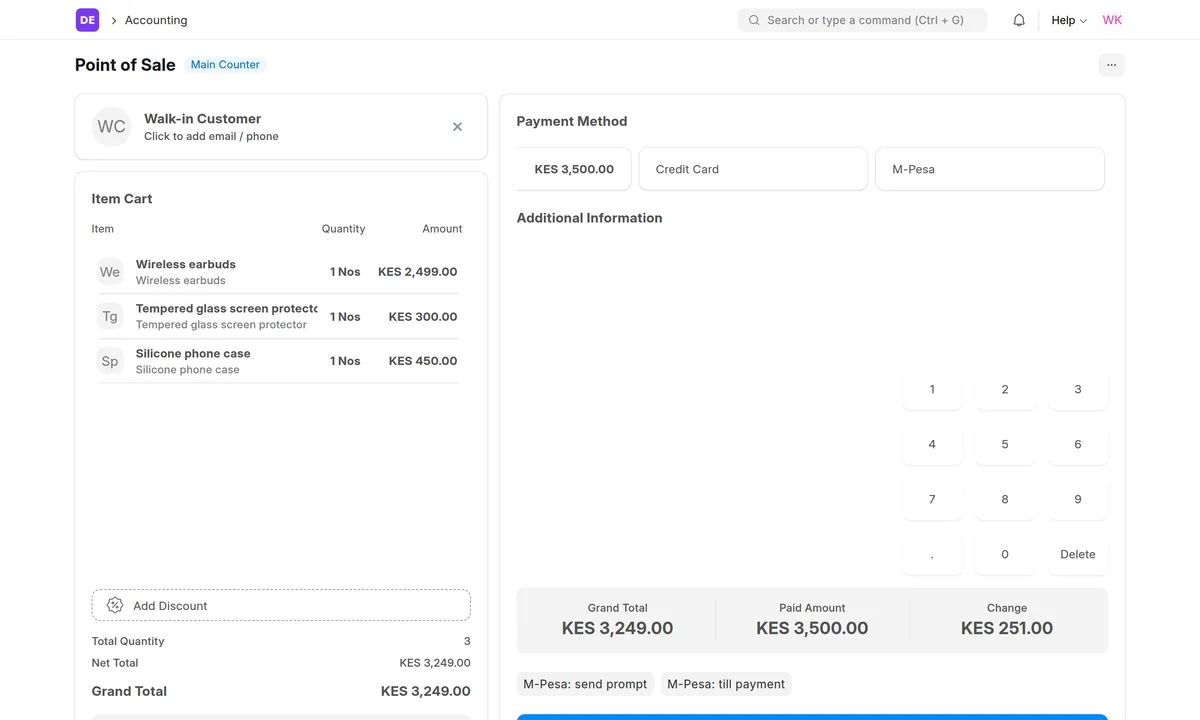
- Cash: wireless earbuds, a phone case and a screen protector, KES 3,249. The customer hands over KES 3,500 and the POS shows KES 251 change.
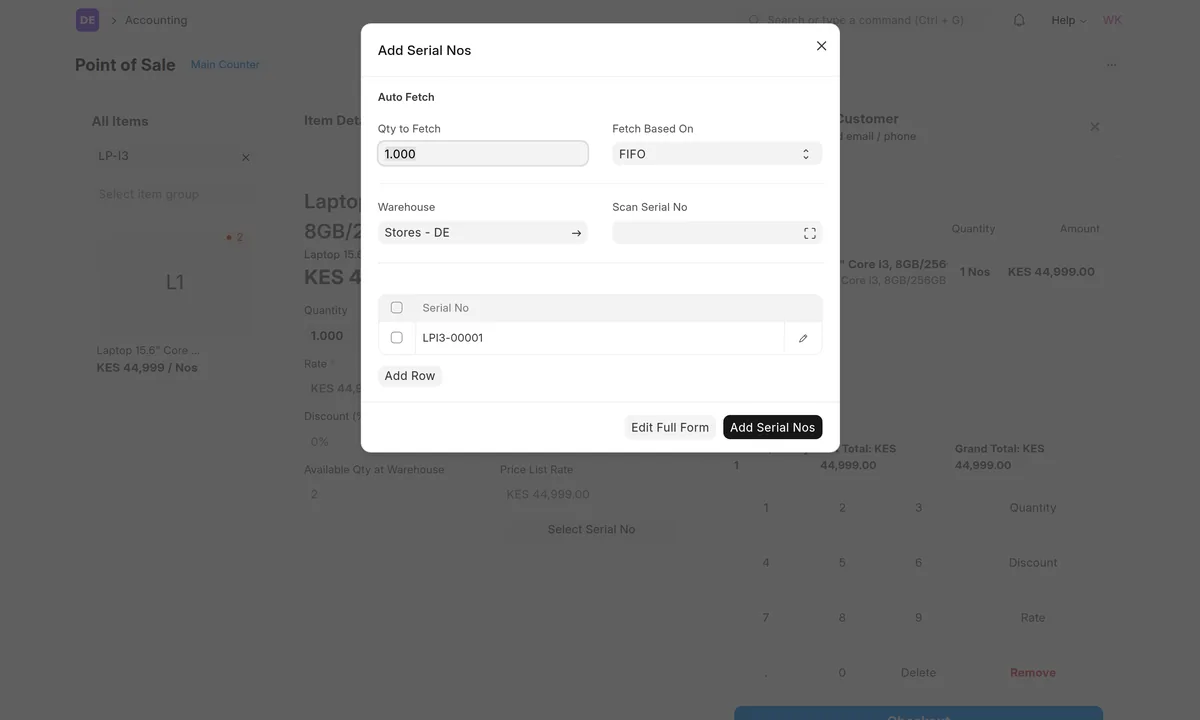
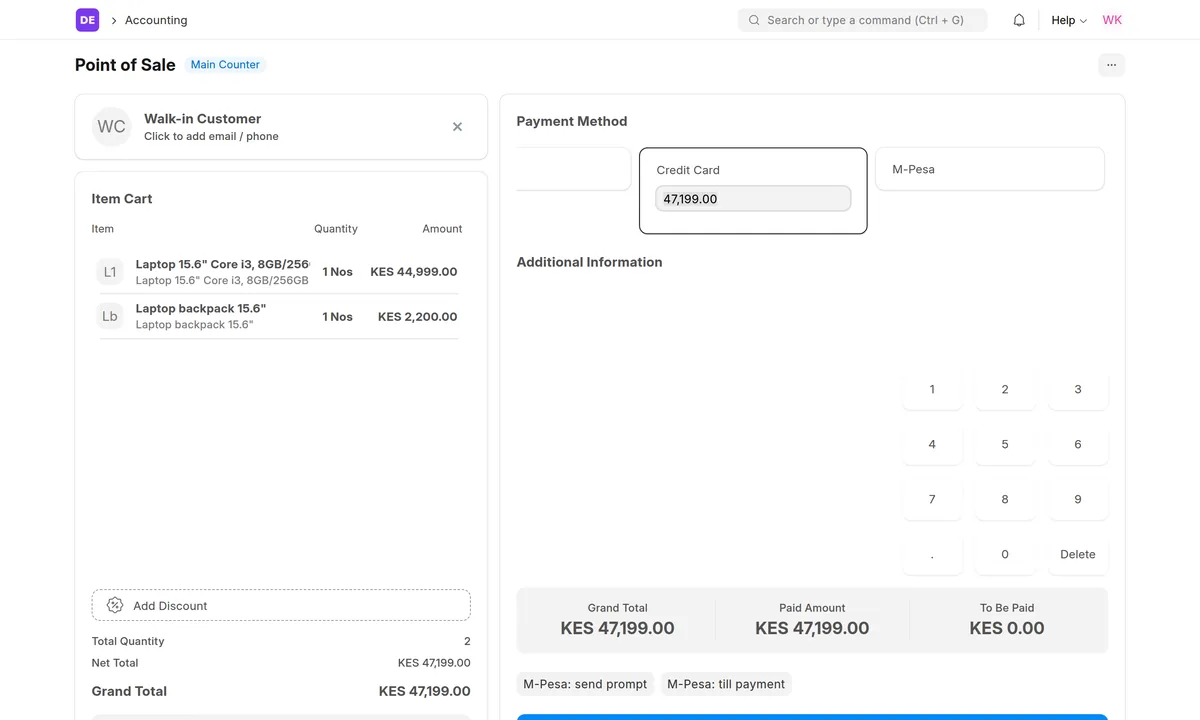
- Card: a laptop and a backpack, KES 47,199. Because the laptop is serial-tracked, the POS asks which unit is being sold.
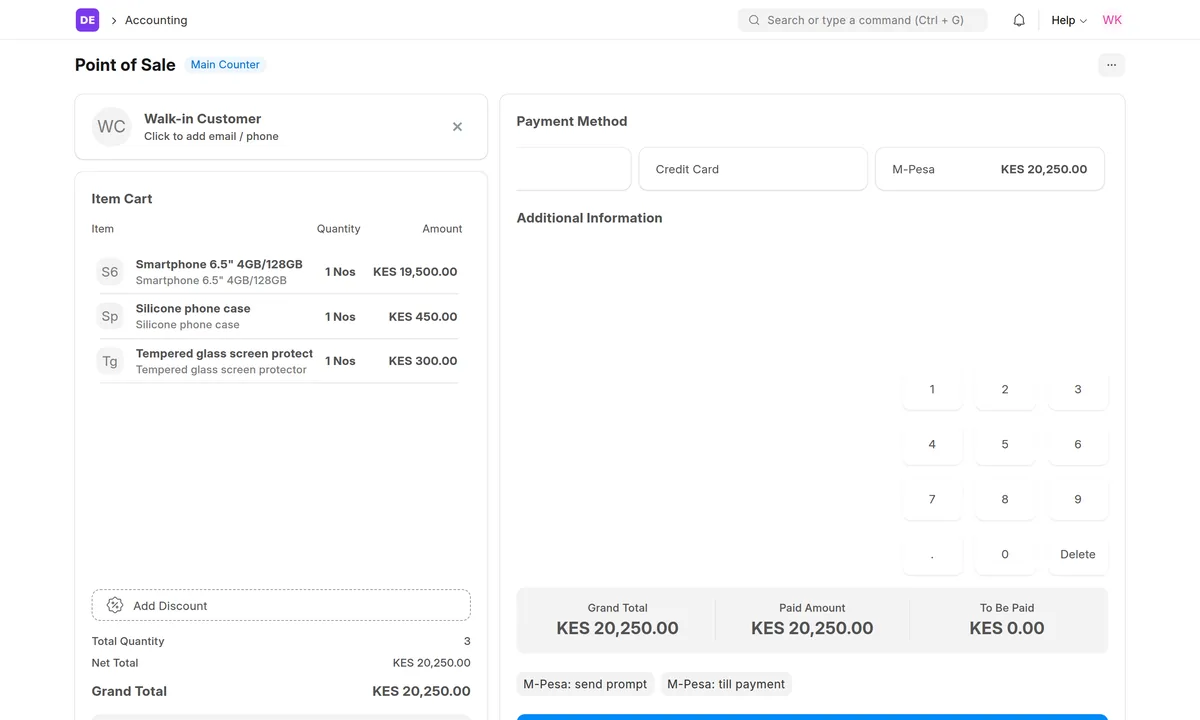
- M-Pesa: a phone, a case and a screen protector, KES 20,250, paid to the shop's till. The cashier picks the customer's payment under M-Pesa: till payment (see the M-Pesa guide).
To give the reports something to show we added 22 more sales across the shift, to walk-in customers and two account customers: 25 sales in all.
Close the shift
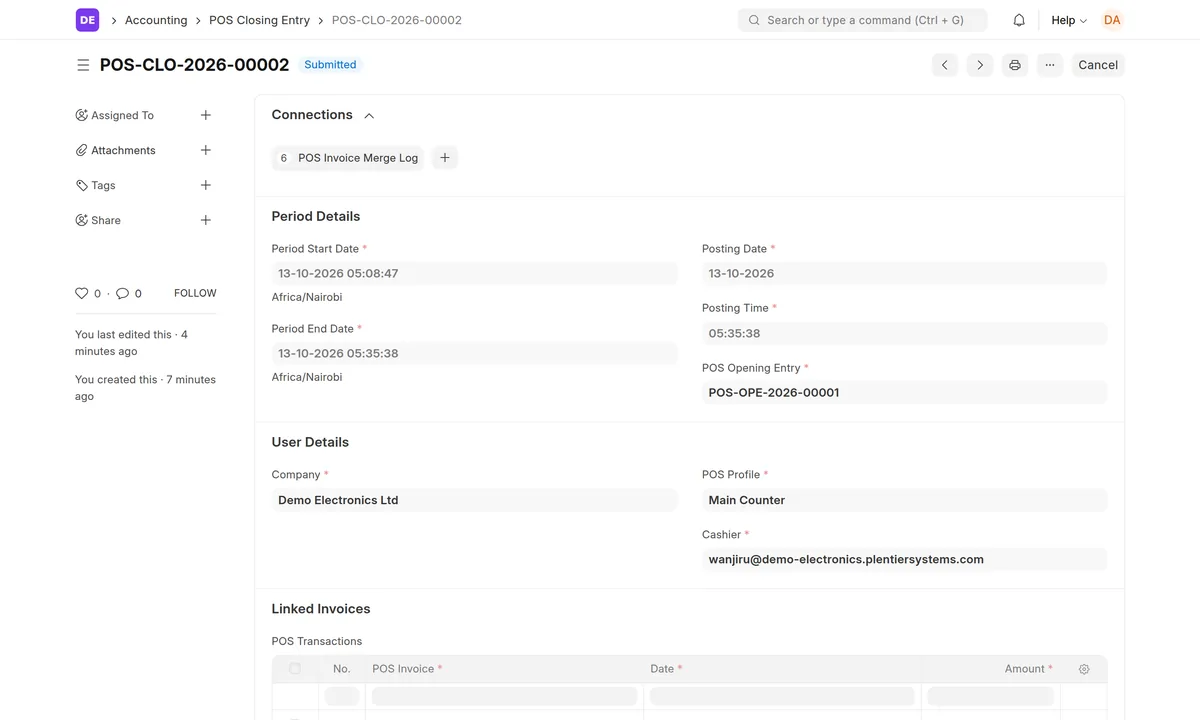
At the end of the shift the cashier closes the POS and counts the drawer. Until then, POS sales are saved as POS Invoices that hold the stock but don't post it. The POS Closing Entry merges them into Sales Invoices, one per customer, and those post the stock movements and accounting entries. Close the shift before you read stock or profit reports. (See ERPNext's POS Closing Entry documentation.) In this lab the cashier's roles (Sales User, Stock User, Accounts User) weren't enough to submit the closing entry, so the cashier counts the drawer and a manager submits it.
Step 5: Process a return and follow it through stock and accounts
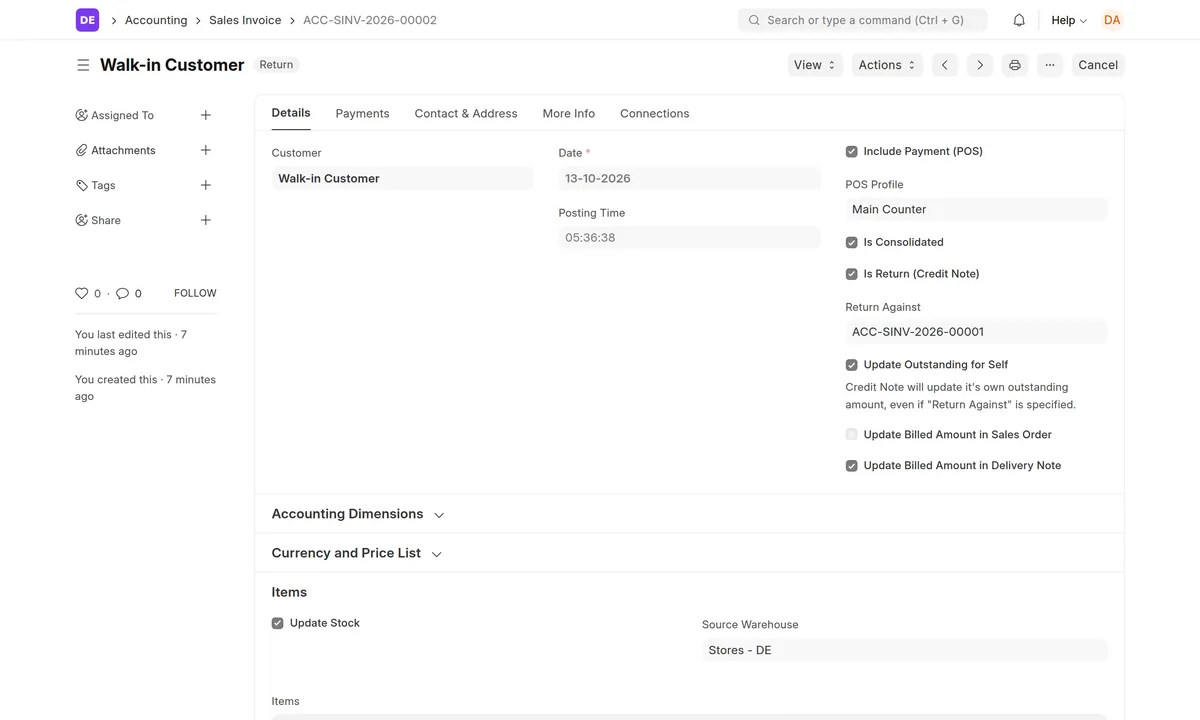
The M-Pesa customer brings the phone back the same day, and the shop refunds KES 19,500 in cash. The case and screen protector stay sold. Open the original POS invoice and choose Create → Return (or Recent Orders → Return in the POS), keep only the phone line with quantity −1 and its serial number PHA15-00001, set the refund to Cash, and submit. When the shift is closed the return becomes a credit note against the sale, ACC-SINV-2026-00002. ERPNext's sales return documentation covers returns made outside the POS.
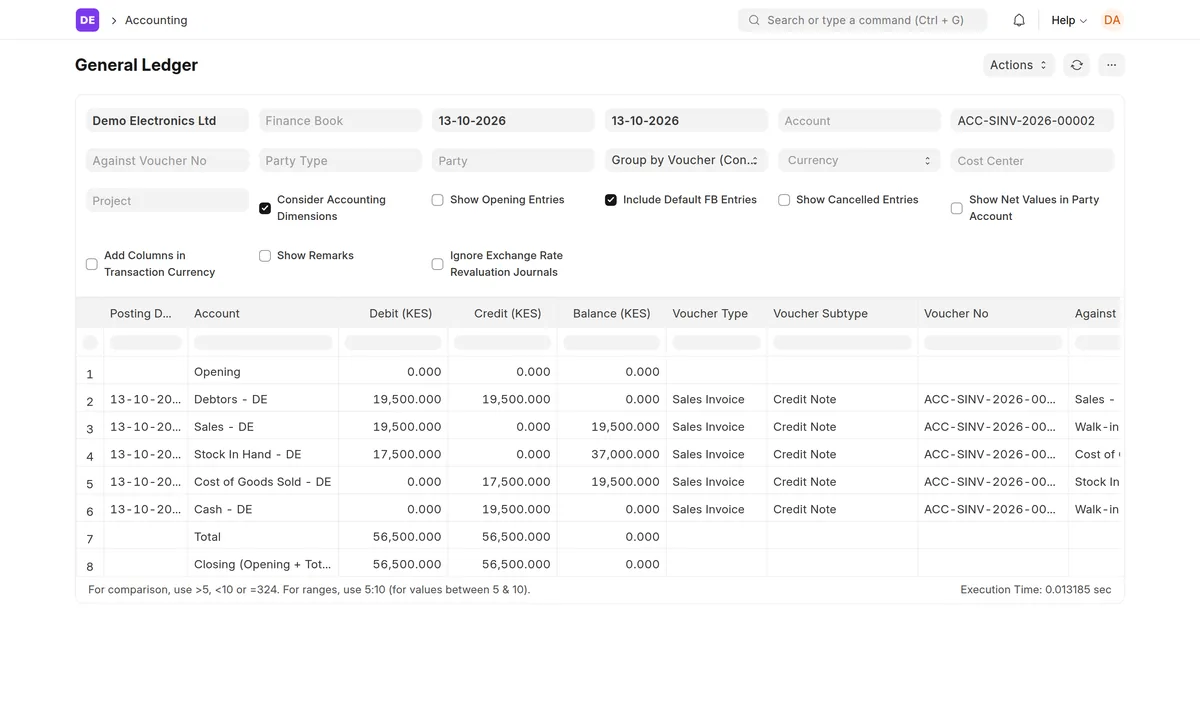
Effect on accounting. Open the General Ledger filtered on the credit note. The return makes two pairs of entries: it reverses the sale and refunds the cash (Sales debited KES 19,500, Cash credited KES 19,500, through Debtors), and it puts the phone back on the books at its cost (Stock In Hand debited KES 17,500, Cost of Goods Sold credited KES 17,500). The KES 2,000 margin on the phone disappears with the sale.
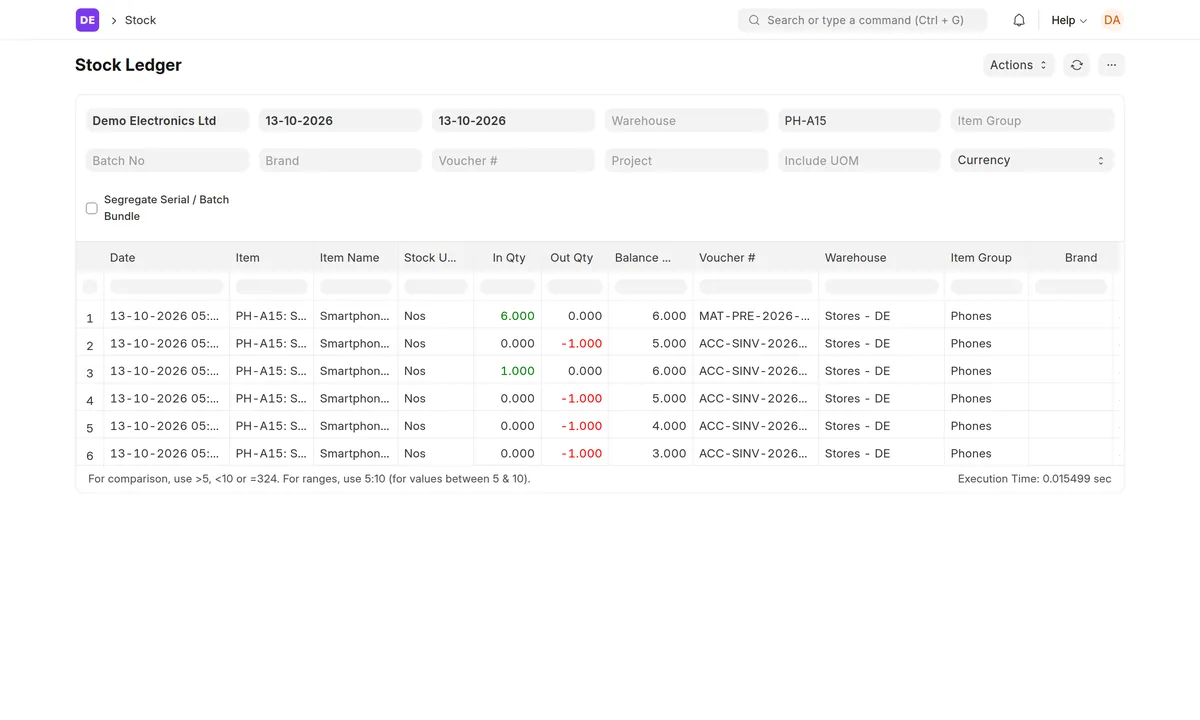
Effect on stock. The Stock Ledger for PH-A15 tells the phone's story line by line: 6 received at KES 17,500, 1 sold, 1 returned at the same KES 17,500, and 3 more sold later in the shift. Serial PHA15-00001 is back to Active in Stores and can be sold again.
Step 6: Stock balance, stock value and sales
Stock Balance (Stock → Reports) shows each item's opening quantity and value, what came in and went out in the period, and the closing quantity and value, so one report answers both “how many” and “how much is it worth”. On this ERP it is a background report: set the company, dates and store and click Generate New Report.
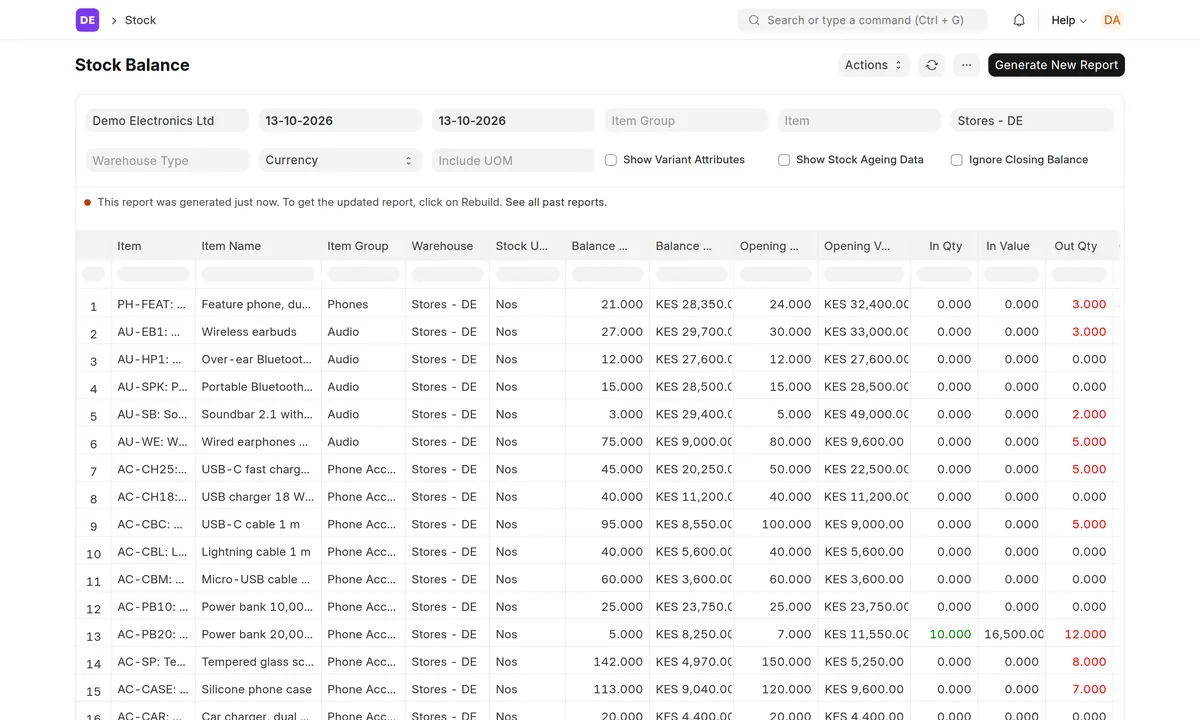
At the end of the lab the stock is worth KES 1,164,130, and the Stock In Hand account in the general ledger shows the same KES 1,164,130. That match is the point of ERPNext's perpetual inventory: every stock movement posts to the accounts as it happens, so stock and accounts never drift apart. If they ever differ, run Stock and Account Value Comparison to find out why.
For sales, Item-wise Sales Register lists every item sold with its invoice, customer and amount. Across the shift the shop sold KES 283,011 after the return, against a cost of goods sold of KES 205,820, a gross profit of KES 77,191 (27%).
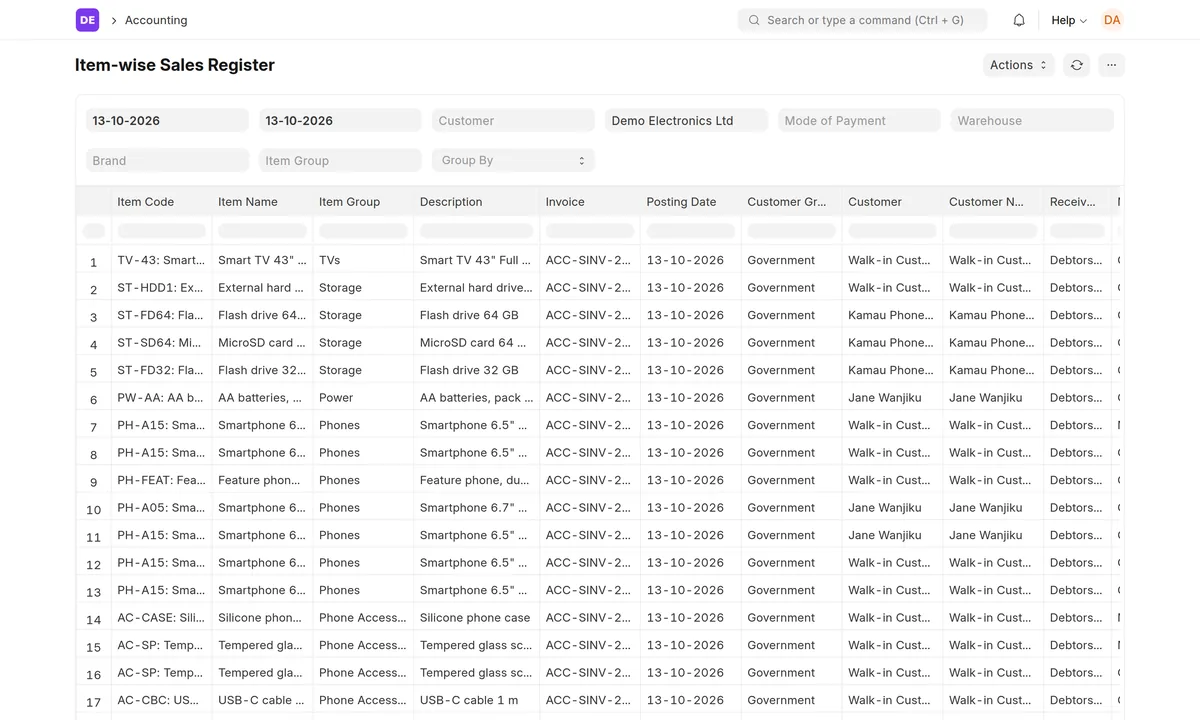
Step 7: Find low stock and weak margins
Low stock
Open Stock Projected Qty for the store. Next to each item's actual, ordered and projected quantity it shows the reorder level and a Shortage Qty: how far the projected quantity is below the reorder level. Type >0 in the filter box at the top of the Shortage Qty column to keep only what needs restocking:
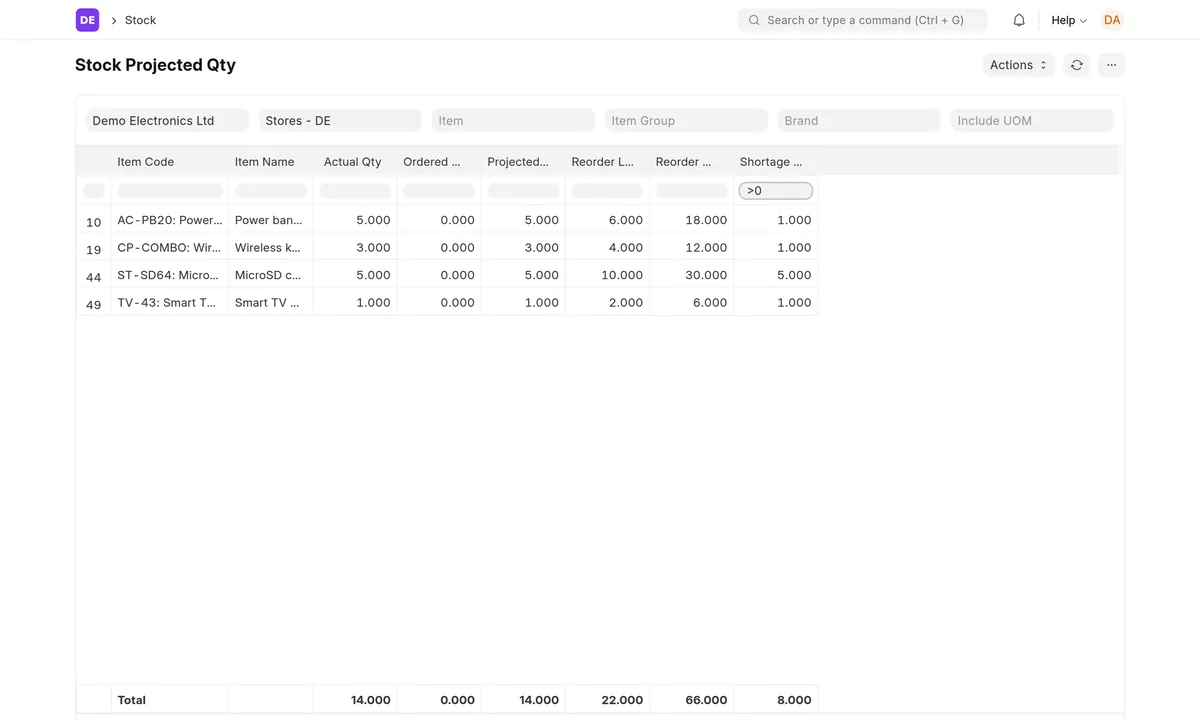
| Product | In stock | Reorder level | Short by |
|---|---|---|---|
| ST-SD64 · MicroSD card 64 GB | 5 | 10 | 5 |
| AC-PB20 · Power bank 20,000 mAh | 5 | 6 | 1 |
| CP-COMBO · Wireless keyboard and mouse combo | 3 | 4 | 1 |
| TV-43 · Smart TV 43" Full HD | 1 | 2 | 1 |
The MicroSD card is the urgent one: half its reorder level is gone. Three more items sit exactly at their level (a router, a 55" TV and the Core i3 laptop) and will need restocking after the next sale. With Auto Re-order enabled in Stock Settings, ERPNext raises a Material Request for these automatically.
Weak margins
Open Gross Profit (Accounts → Reports), group by Item Code, and type <20 in the Gross Profit Percent column filter. The report compares each item's selling amount with what it cost, using the actual cost from the stock ledger rather than today's price list:
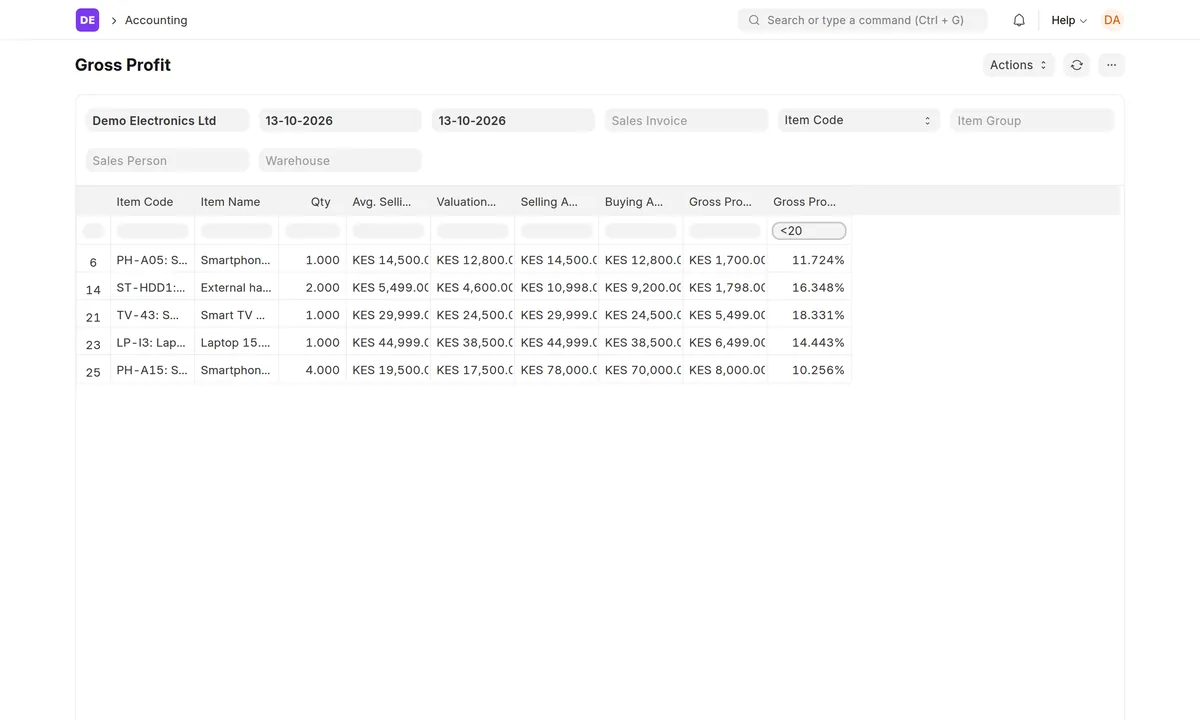
| Product | Qty | Sales (KES) | Cost (KES) | Margin |
|---|---|---|---|---|
| PH-A15 · Smartphone 6.5" 4GB/128GB | 4 | 78,000 | 70,000 | 10.3% |
| PH-A05 · Smartphone 6.7" 4GB/64GB | 1 | 14,500 | 12,800 | 11.7% |
| LP-I3 · Laptop 15.6" Core i3 | 1 | 44,999 | 38,500 | 14.4% |
| ST-HDD1 · External hard drive 1 TB | 2 | 10,998 | 9,200 | 16.3% |
| TV-43 · Smart TV 43" Full HD | 1 | 29,999 | 24,500 | 18.3% |
This is typical for electronics: phones, laptops and TVs bring in the big sales but only 10 to 18% margin, while accessories carry the profit. Screen protectors made 88% and cases 82% in this lab. Two things to act on: sell an accessory with every phone, and check the phone prices, since PH-A15 makes KES 2,000 on a KES 19,500 sale. (Gross Profit counts the four PH-A15 phones sold; the one returned shows on its credit note.)
Problems we hit, and the fixes
Why don't POS sales show in the Stock Ledger straight away?
In ERPNext 15 a POS sale is saved as a POS Invoice, which reserves the stock but doesn't post it. When the shift is closed, the POS Closing Entry merges the shift's POS invoices into Sales Invoices (one per customer), and those post the stock ledger and accounting entries. Close the shift before you read stock or profit reports.
The closing entry failed with “Serial No … is not present in the warehouse”.
The same serial number was sold on two POS invoices in one shift. POS invoices don't mark a serial as delivered until the shift is closed, so the POS can offer it again. Return or cancel one of the sales and sell it again with an unused serial number, then submit the closing entry again.
A returned item came back at its selling price instead of its cost.
We hit this in the lab. When a sale and its return fall in the same POS shift, ERPNext 15's closing entry posts both at the same moment and the credit note isn't linked to the sale's invoice, so it can value the returned item at its selling price. After closing, check the return's line in the Stock Ledger: the incoming rate should be the item's cost. If it isn't, an administrator links the credit note to the sale and runs Repost Item Valuation for that item, which corrects the stock value and the accounts. Returns of sales from earlier shifts are linked to the original Sales Invoice and come back at cost.
Stock Balance says it is a background report.
On larger ERPs ERPNext runs Stock Balance in the background. Set the filters and click Generate New Report; the result appears in a few seconds and is kept, so the next person sees it without waiting. Click Generate again after new transactions.
Can I load these 50 products into my own ERP?
Yes. Download the product list, change the codes, names and prices to your own, and import it with Data Import (Item, then Item Price). Items with a serial number series need “Has Serial No” ticked; set up your own series so numbers don't clash.
About this lab
We built this lab on a dedicated Plentier ERP (ERPNext 15), created the same way as a customer's ERP. The company, supplier, customers and products are made up; product names are generic and prices are typical Nairobi shelf prices in October 2026. More labs for spare parts, pharmacy and hardware shops are on the way. More help: all guides · the Plentier POS · Leo, the AI assistant, which can answer “which items are below their reorder level?” for you.
Want your shop running on ERPNext?
Book a free, no-obligation consultation. We’ll review your goals and recommend a practical path forward, usually within one call.