
How M-Pesa works at the point of sale
When a cashier sends an M-Pesa prompt, three parties talk in a few seconds: your POS, Safaricom and the customer's phone. Here is what happens at each step, how the payment ends up against the right sale, and what to do when it doesn't go through.
By the Plentier Systems ERP team, who built this integration · Published · 6-minute read.
The short version
An M-Pesa prompt (Safaricom calls it M-Pesa Express, developers call it STK push) lets the business start the payment instead of the customer. The cashier types the customer's number, the customer sees "Do you want to pay…" on their phone and enters their PIN, and Safaricom tells your system the moment the money has moved. Nobody types a till number or reads out a confirmation SMS.
What happens, step by step
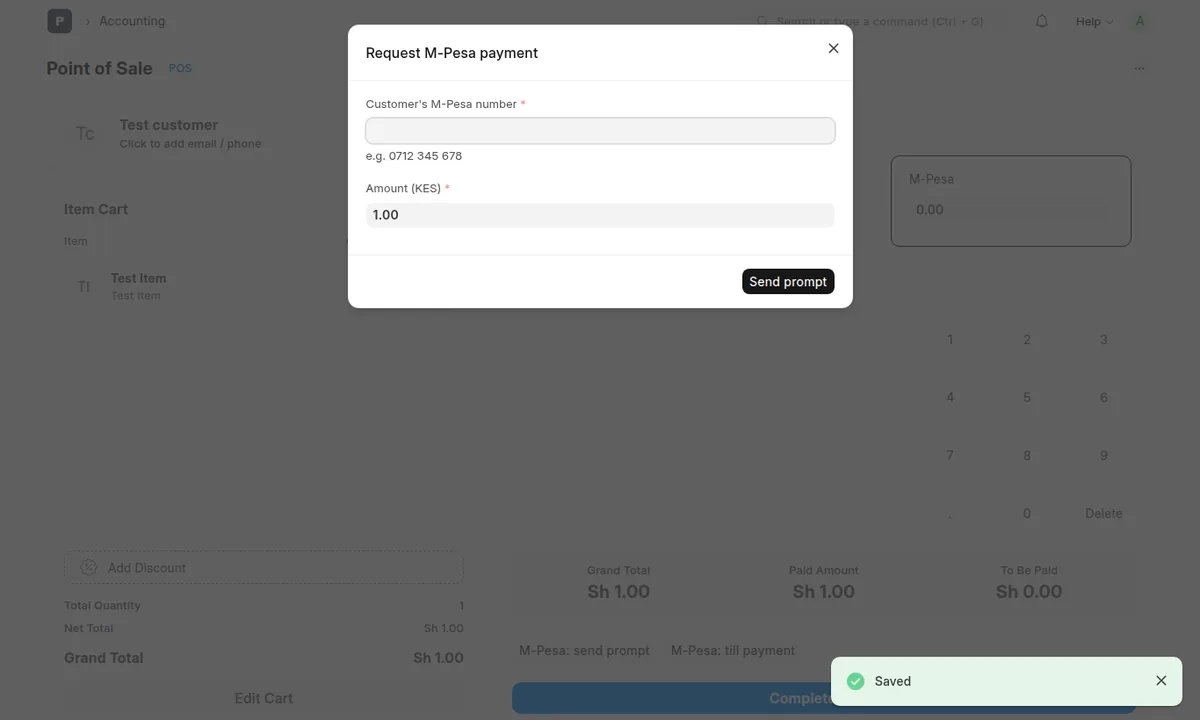
- The cashier asks for payment. At checkout they choose M-Pesa and enter the customer's phone number. The amount comes from the sale: the total, less anything already paid in cash or by card.
- The POS asks Safaricom to send a prompt. The request names your paybill or till, the amount and the customer's number. Safaricom checks it and replies straight away that the prompt is on its way.
- The customer approves on their phone. The prompt shows your business name and the amount. The customer enters their M-Pesa PIN, or cancels.
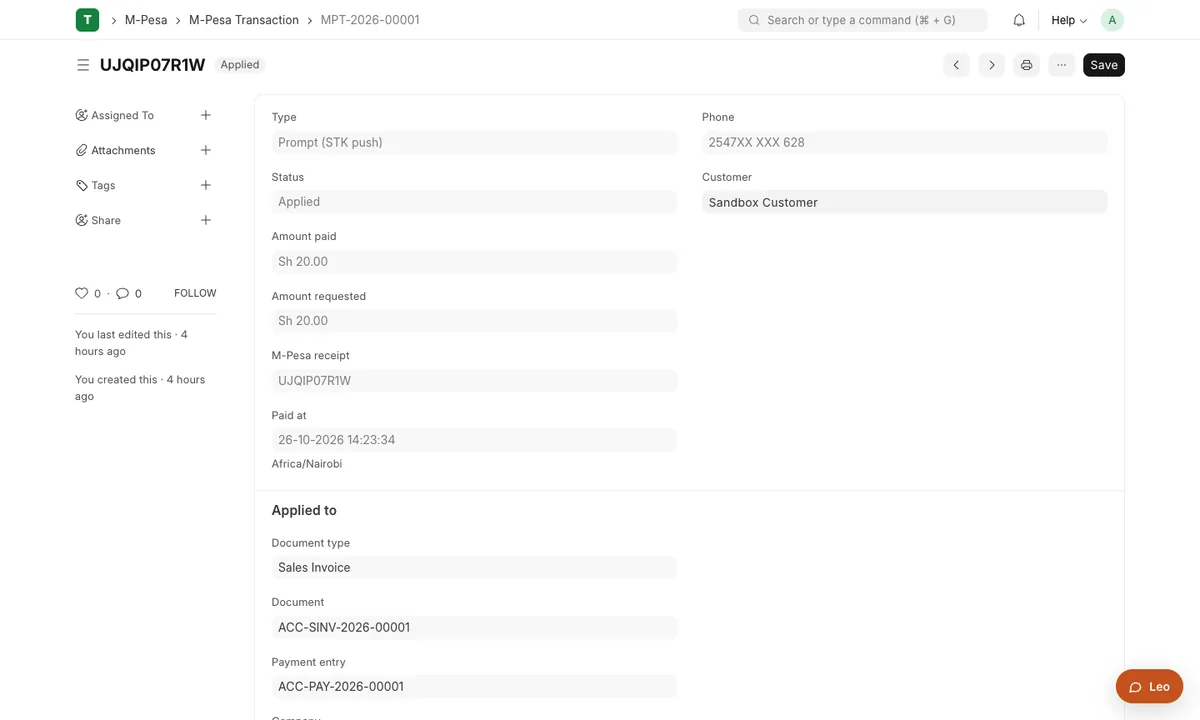
- Safaricom confirms. Within seconds Safaricom sends the result to your system: paid (with an M-Pesa receipt number such as SJT8H2K9QW), cancelled, or failed with a reason. If that message is delayed, the ERP asks Safaricom for the result itself, so no sale is left hanging.
- The ERP records it against the sale. An M-Pesa Transaction is saved with the receipt number, amount and the sale it belongs to, and the M-Pesa amount fills in on the till. The cashier completes the order.
How it reaches your books
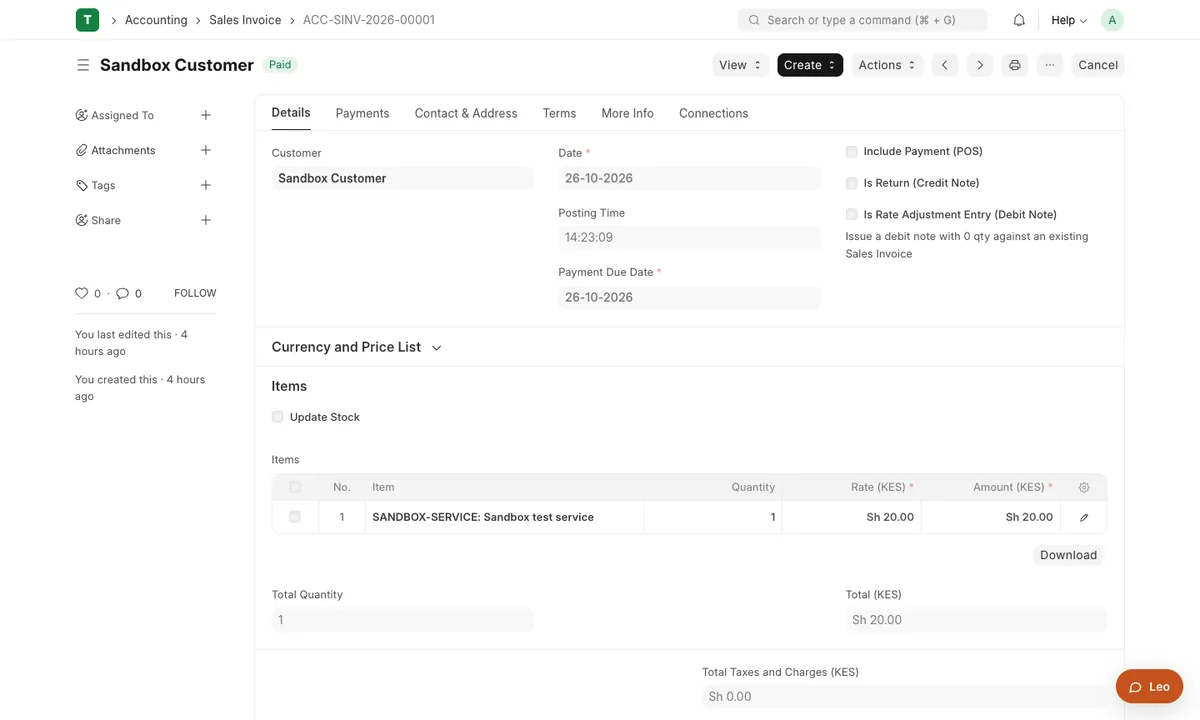
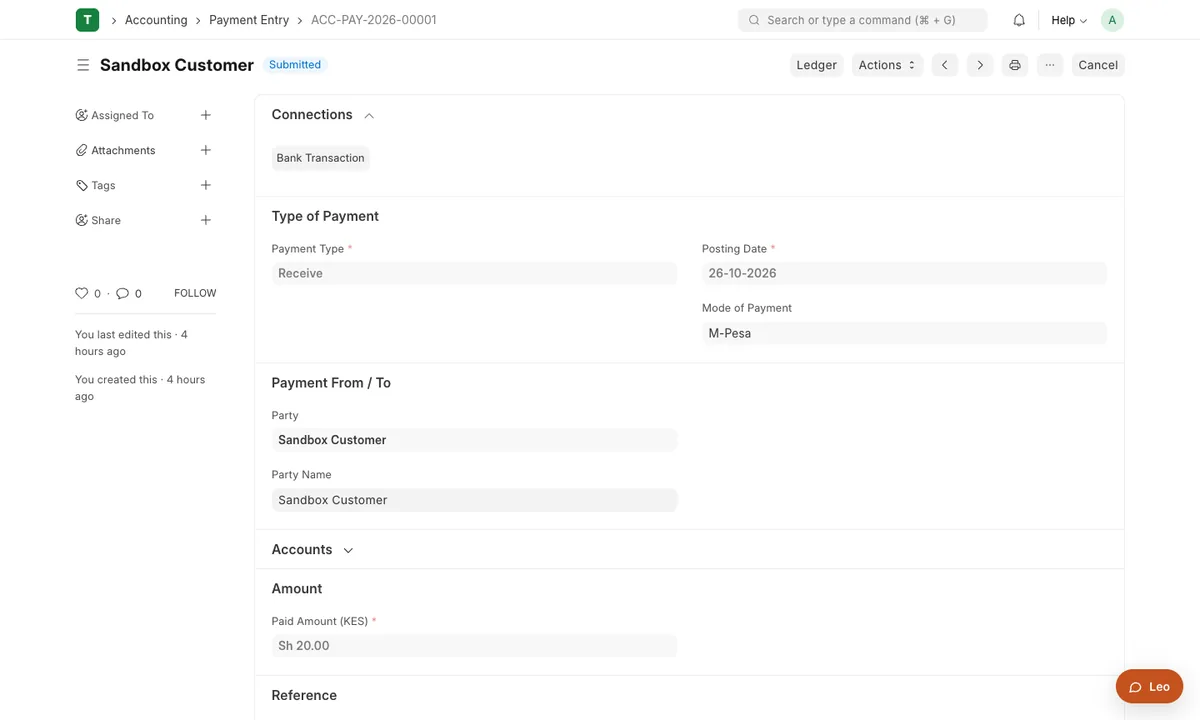
For a POS sale, the confirmed M-Pesa amount is part of the POS invoice and goes into your M-Pesa account when the shift is closed. For a sales invoice paid by prompt, the ERP creates a payment entry straight away, using the M-Pesa receipt number as the reference, and the invoice shows as paid:
Because nothing is recorded as M-Pesa until Safaricom confirms it, your sales, your books and your M-Pesa statement agree at the end of the day.
When customers pay the till themselves
Some customers prefer to pay your till or paybill from their own phone. Once till notifications are registered, Safaricom sends each of those payments to the ERP too, within seconds. They appear under M-Pesa Transactions as received, and the cashier picks the right one for the sale (each payment can only be used once). If the customer typed an invoice number as the account number, the ERP matches it to that invoice automatically.
When a prompt doesn't go through
Safaricom says why, and the ERP shows it in plain words:
- The customer cancelled the prompt. Ask them to try again, or take another payment method.
- Not enough money in M-Pesa. They can top up, or pay part by M-Pesa and the rest another way.
- Wrong PIN. Send the prompt again.
- The phone couldn't be reached. It may be off, without network, or using an old SIM. Check the number, or let them pay the till directly.
Where the money goes
With your own paybill or till connected, Safaricom pays every M-Pesa sale straight into your M-Pesa business account, exactly as if the customer had paid the till by hand. The ERP never holds the money; it only receives Safaricom's confirmation and records it. To connect your number you need a Safaricom paybill or till in the business's name and API keys from Safaricom's Daraja portal; the M-Pesa setup guide walks through it.
Common questions
Does the money go to Plentier first?
No. With your own paybill or till connected, Safaricom pays the money straight into your M-Pesa business account. Plentier ERP only receives Safaricom's confirmation and records it.
How long does confirmation take?
Usually a few seconds after the customer enters their PIN. If Safaricom's message is delayed, the ERP asks Safaricom for the result itself, so the sale doesn't stay pending.
What if the customer pays the till directly instead?
Once till notifications are registered, payments made straight to your paybill or till appear under M-Pesa Transactions within seconds, and the cashier can pick the right one for the sale.
Can a sale be marked as M-Pesa without the money arriving?
Not by default. The POS only accepts an M-Pesa amount that Safaricom has confirmed, so your sales and your M-Pesa statement agree. An administrator can switch this check off.
About this guide
We built the M-Pesa integration in Plentier ERP, and the screenshots come from a live ERP running a test payment; customer phone numbers are masked. If something here doesn't match what you see, tell us and we'll update it.
Choosing a till system? See Plentier POS, which includes M-Pesa on every plan, and how to set up the POS.
Want M-Pesa working at your till this week?
Book a free, no-obligation consultation. We’ll review your goals and recommend a practical path forward, usually within one call.